


This is a step by step guide on how to add yourself as an administrator on your VEIN server.
First step, you need to log into your Game Panel account to manage the server. You will have received your Game Panel credentials via email when you made your purchase, with the subject Your Control Panel login.
Use your credentials to log in here: https://gamepanel.gghost.games/
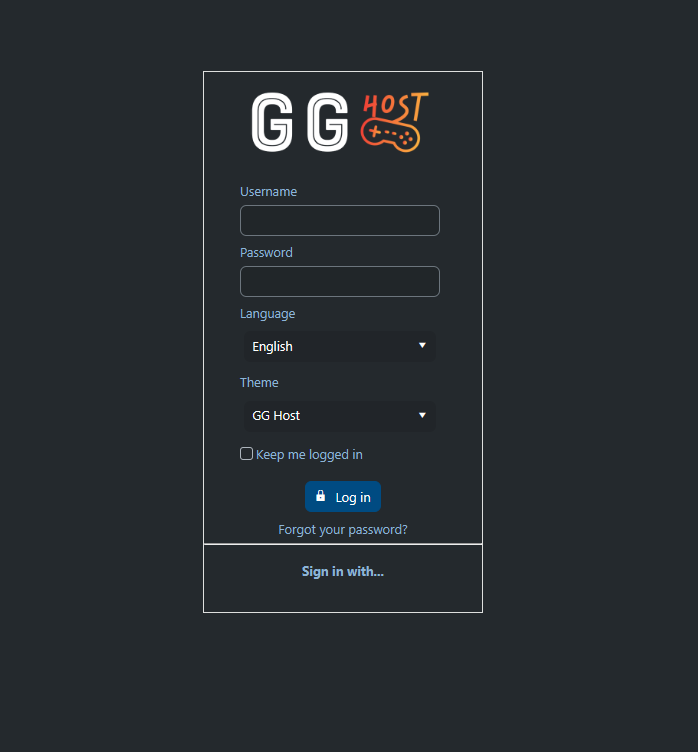
(If you need to recover your credentials, you can use the Forgot your password link, right below Log in button)
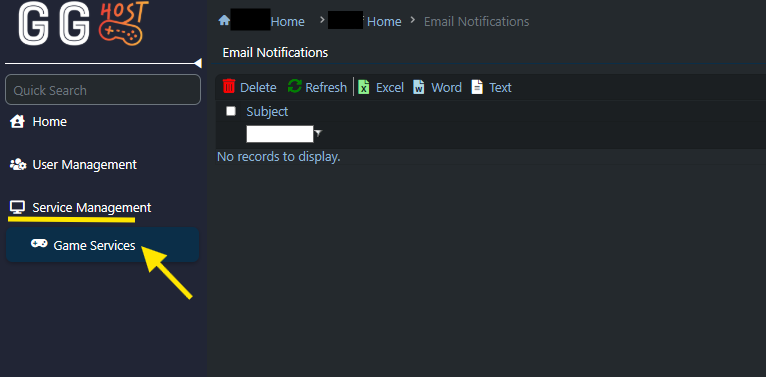
Now, use the left side menu to select Service Management and then Game Services. If you only have one service, you will be taken straight to it. If you have more than one, select your VEIN server from the list.
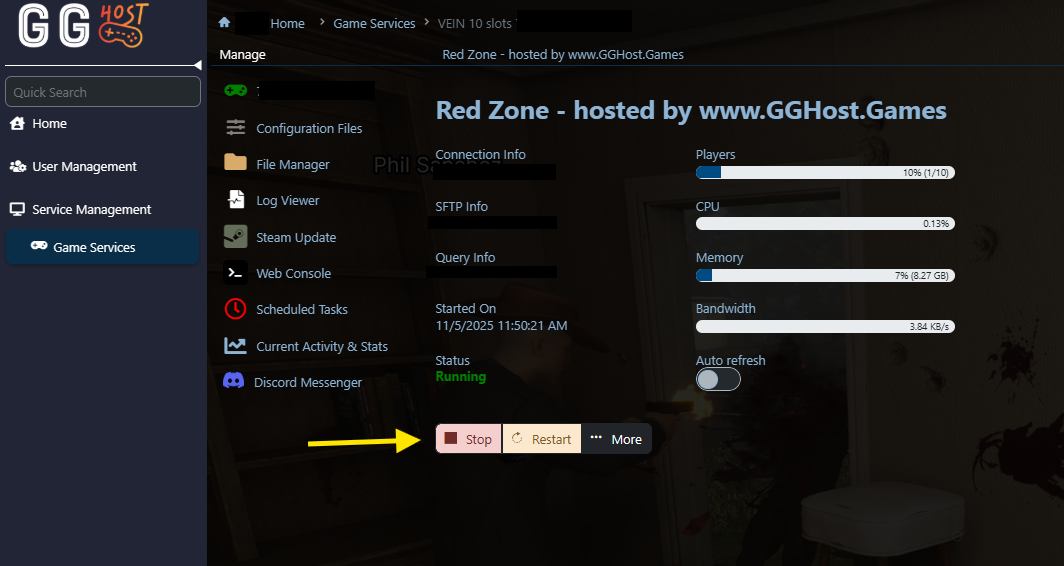
Click the Stop button to stop your VEIN service. Give it a moment until the status updates from Running to Stopped.
Now that the service is stopped, click on Configuration files then Config Editor. Here you will see a field to set your Steam id 64 (A unique string of 17 numbers, usually starting with 765)
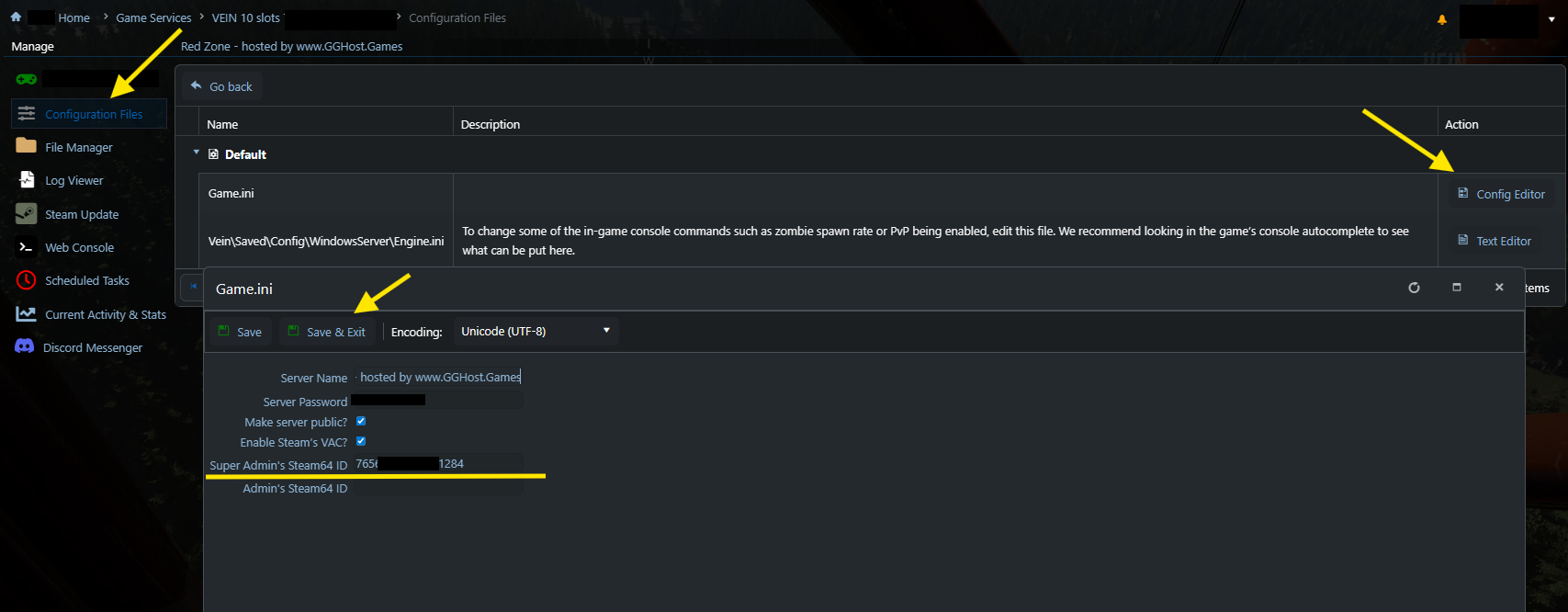
Paste your Steam id 64 carefully, making sure there are no blank spaces by accident. And click save and exit.
You can easily obtain your Steam id 64 by using third party websites, but this information is also available in your Steam desktop app, under account details as shown in the screenshot below:

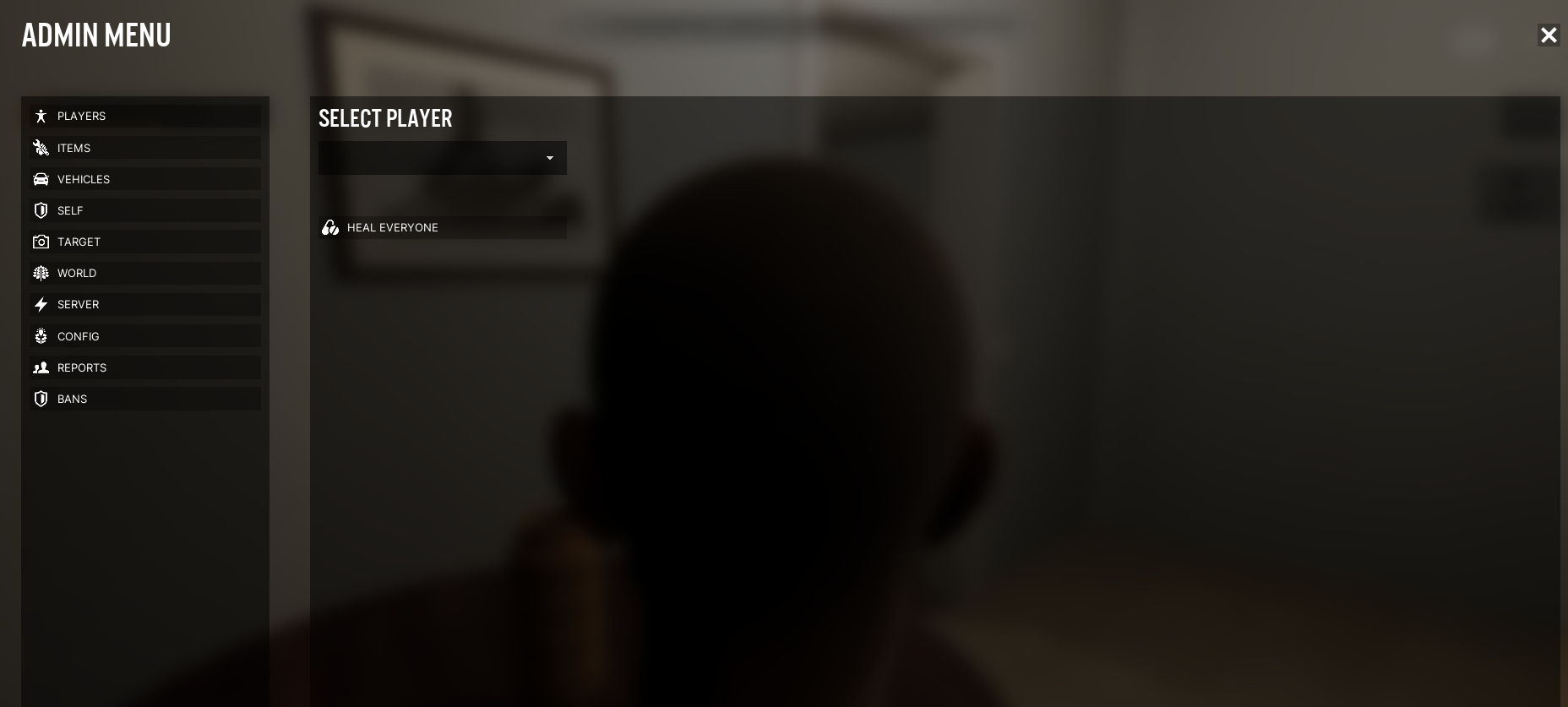
Now, click Start to start up your VEIN service again, and after you join it you can press the backslash key (\) to open the in game admin menu and adjust your server settings.
If you need any assistance, please feel free to log a support ticket so we can help! Our support team is available 24/7 and standing by to assist you.
Need a VEIN server?
GG Host provides high performance, low latency servers and reliable support so your community can explore, survive, and grow in a stable and seamless environment. Order your VEIN server now: https://www.gghost.games/store/vein