


How to Join Your StarRupture Dedicated Server
StarRupture uses Epic Online Services (EOS) for multiplayer. To connect to a dedicated server you must use the game’s Dedicated Server connection option and join using your IP:Port.
What You’ll Need
- Your server IP Address and Port
- Your server password (Instructions to set in step 1 below)
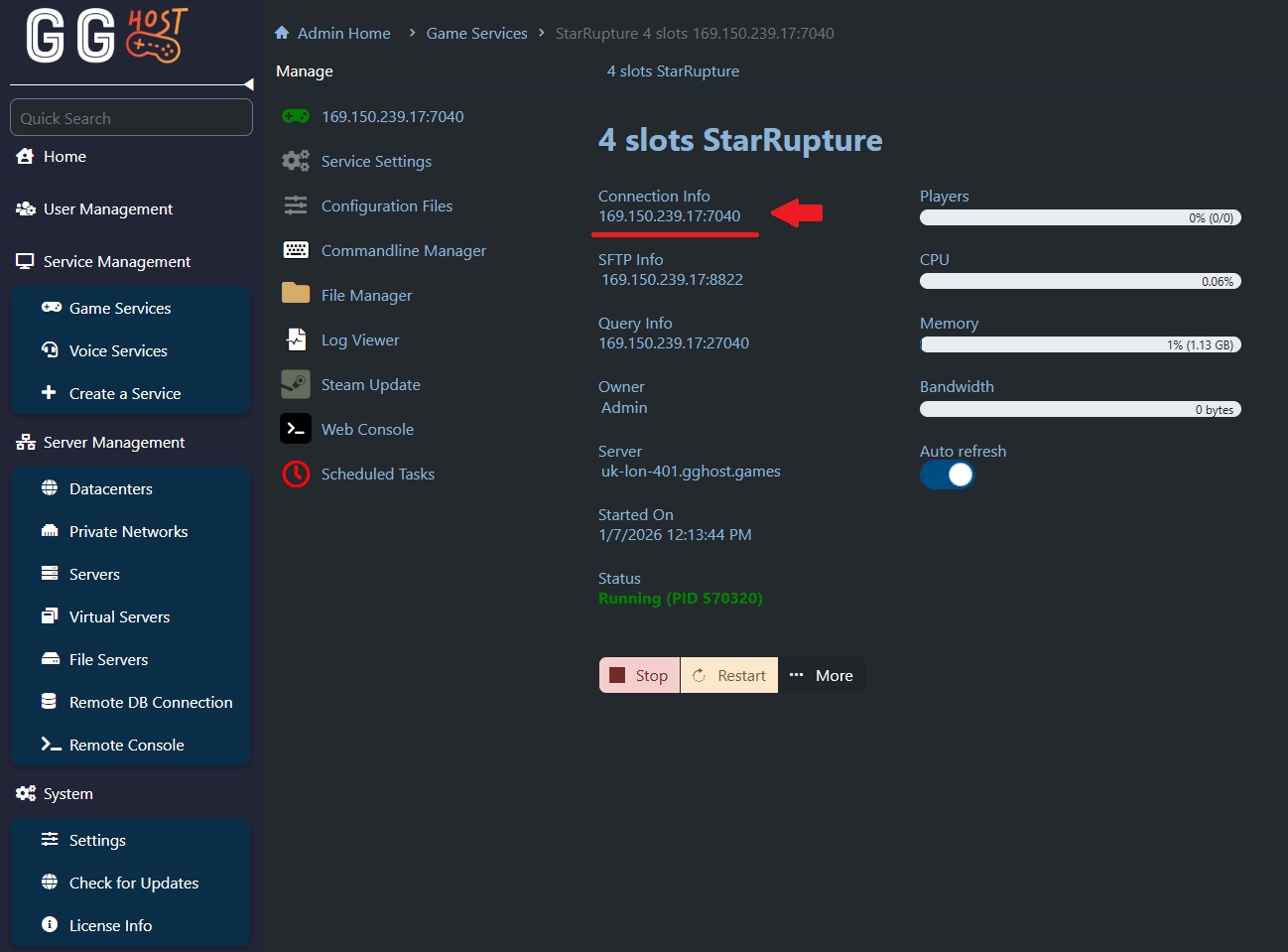
You can find your server connection details in your GG Host Game Panel:
Step 1: Set Your Server Password
Before anyone can join the server, the server password must be created.
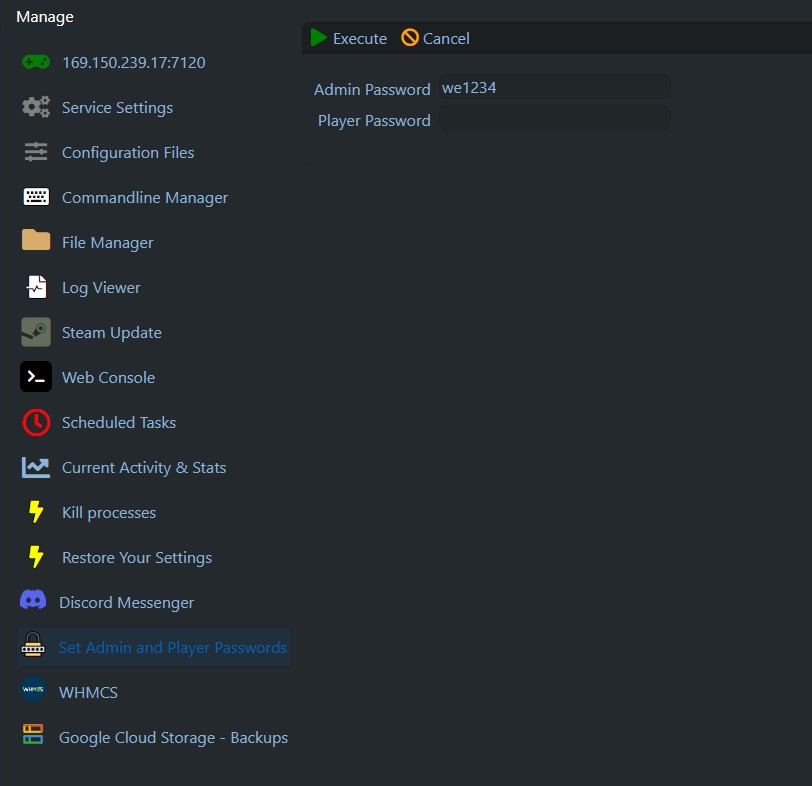
- In our game panel. navigate to Set Admin and Player Passwords
- Enter an Admin Password (at least 6 characters long)
- Enter a Player Password. Can be left empty.
- Click Execute.
- Our Game Panel will create the necessary Password.json and PlayerPassword.json files with the password already encrypted.
- Restart the server so the new passwords are applied.
Step 2: Set your Save folder name
After the password is set, you can set your Save folder name. It is recommended to stop the server first, before following these steps.
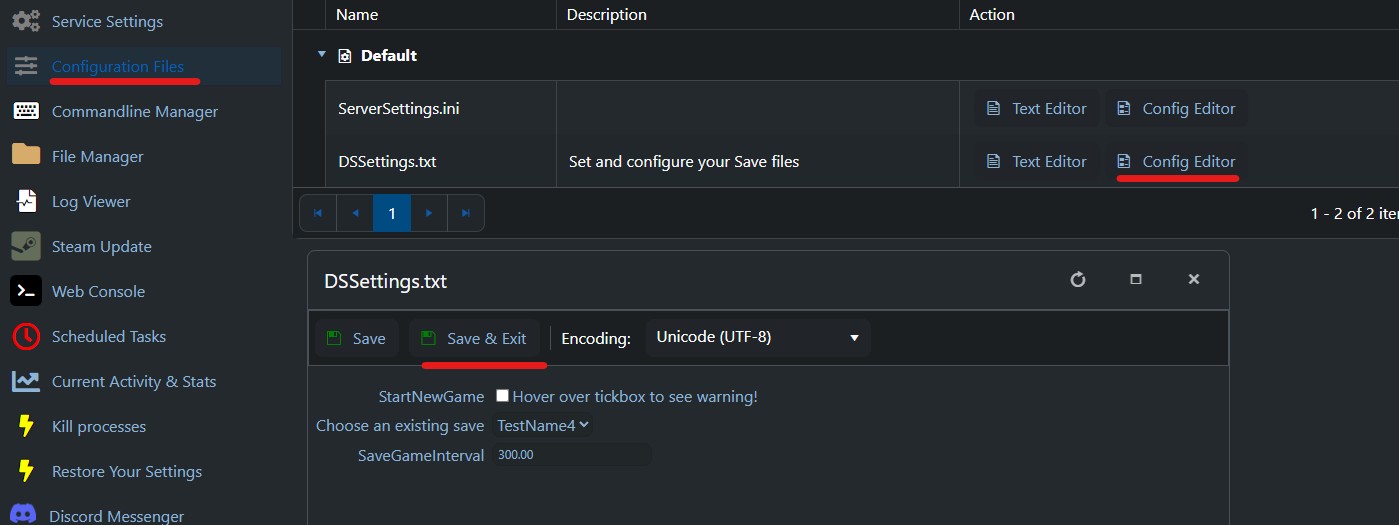
- In the Game Panel, click Configuration Files
- Next to DSSettings.txt click on Config Editor
- Tick StartNewGame
- Enter a name for your folder in New Save Folder Name
- Optional: Adjust the auto-save frequency (in seconds)
- Click Save & Exit
- Start up the server.
Step 3: Join Your Server (Players)
After the passwords and Save folder name is set, you need to join the server for the first time
- From the Main Menu, click Join Game.
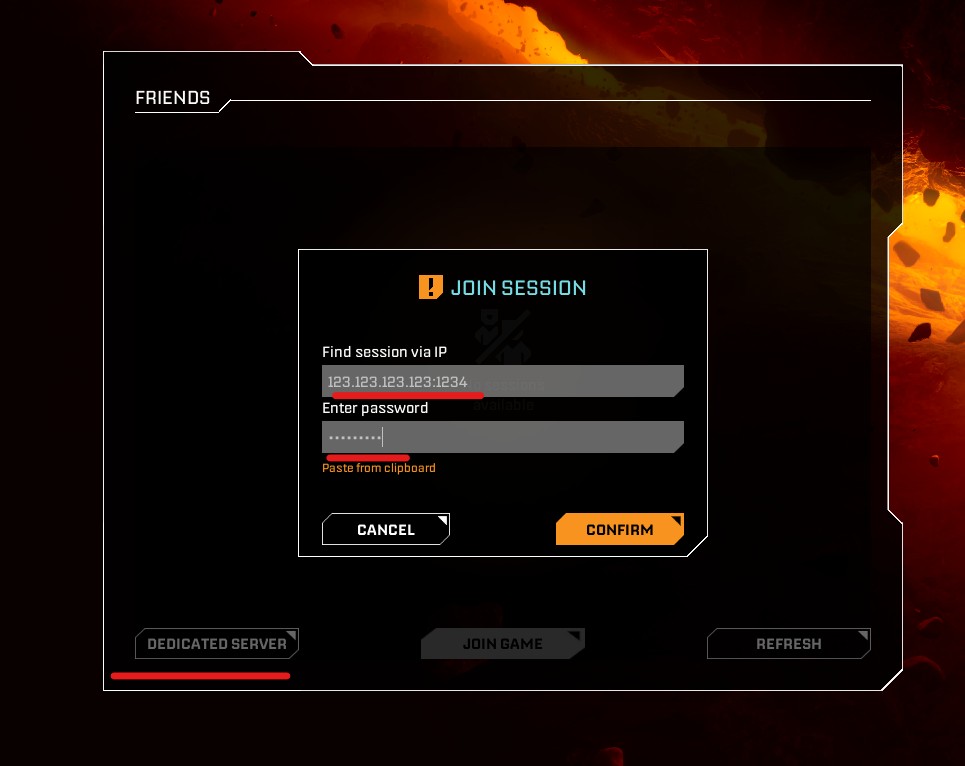
- Open the Dedicated Server tab.
- Enter the server IP:Port.
- Enter the PLAYER password (if set in Step 1).
- Click Connect.
- Once connected, and you've selected a character, press Escape to open the menu, then click Save.
- This will now create the Save folder with the name you selected in Step 2
✅ Once the game is created, other players can join the server.
Finding Your Server IP and Port
- Log into your GG Host Client Area
- Select your StarRupture service
- Your IP:Port is displayed in the server details section
Troubleshooting
Can’t Connect to the Server
- Confirm the server is Started / Online in the control panel
- Double-check you entered the correct IP:Port
- Verify the password is correct
- Restart the server from the control panel and try again
Password Issues
- The in-game StarRupture Manage Server feature is disabled due to this vulnerability. You need to set your password as per Step 1 above.
Password.jsonis located in the root of your server directory.
“Server Not Visible” / No Server Browser Entry
This is expected behavior:
- StarRupture uses EOS, not Steam networking.
- You must join using Join Game → Dedicated Server, not a typical server browser.
- Use direct IP:Port connection.
Need Help?
If you’re still having trouble joining, open a support ticket and include:
- Your server IP:Port
- A screenshot of any error message
- Your local region and the approximate time you tried connecting
Need a StarRupture server?
GG Host offers high performance, low latency servers and reliable support so your community can explore, survive, and flourish. Order your StarRupture server now: https://www.gghost.games/store/starrupture