


A new ICARUS service starts in the Server Lobby, with no world running yet. This guide takes you from GG Nexus, the GG Host game panel, to your first prospect.
Step 1: Find your service's name and passwords
Sign in to GG Nexus, open your ICARUS service and go to the Config tab. Under Server identity you will find:
- Server name: the name your service shows in the game's list. Set one: while it is empty, your service is listed as "ICARUS server", like every other unnamed one, and your players cannot tell which is yours.
- Join password: players type this when they join. One is set for you when the service is created.
- Admin password: for admin commands in the in-game chat. One is set for you too. Press Show to read it.
You can change any of these and press Save, then restart your service so the game reads the new values.
Step 2: Join from the game
- Launch ICARUS, press Play and pick your character.
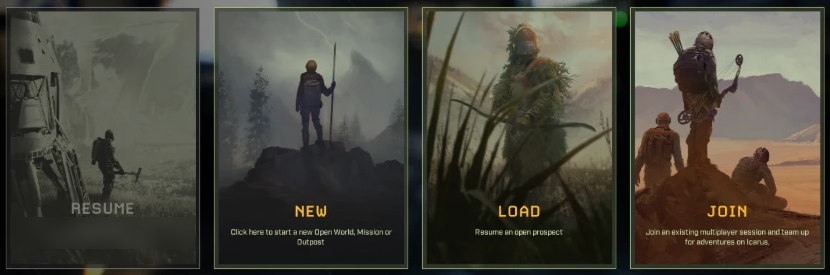
- On the Home screen, choose Join ("Join an existing multiplayer session").
- At the top right, switch from Peer-to-Peer Servers to Dedicated Servers, and stay on the Internet tab.
- Type your service's name into Search servers by name. A new service shows Server Lobby in the Prospect column and a padlock (it has a join password).

- Select it and join, entering your join password when asked.
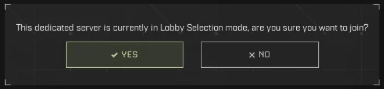
- The game asks: "This dedicated server is currently in Lobby Selection mode, are you sure you want to join?" Choose Yes. That is normal for a service with no world running yet.
Step 3: Start your first world
You arrive in the Server Lobby, with two cards on the left.
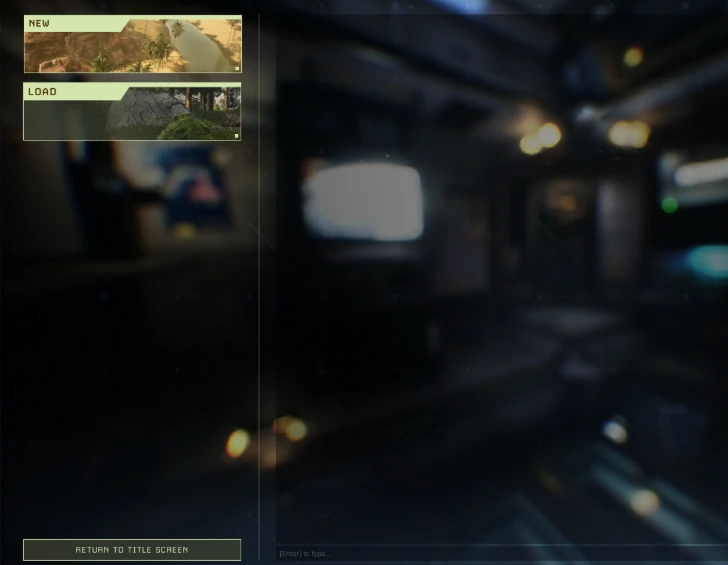
If New and Load are greyed out, your service only lets admins start worlds ("Players can start prospects" is off on the Config tab). Log in first: press Enter to open the lobby's chat, type /AdminLogin followed by your admin password (for example /AdminLogin yourAdminPassword) and press Enter again. New and Load then become available.
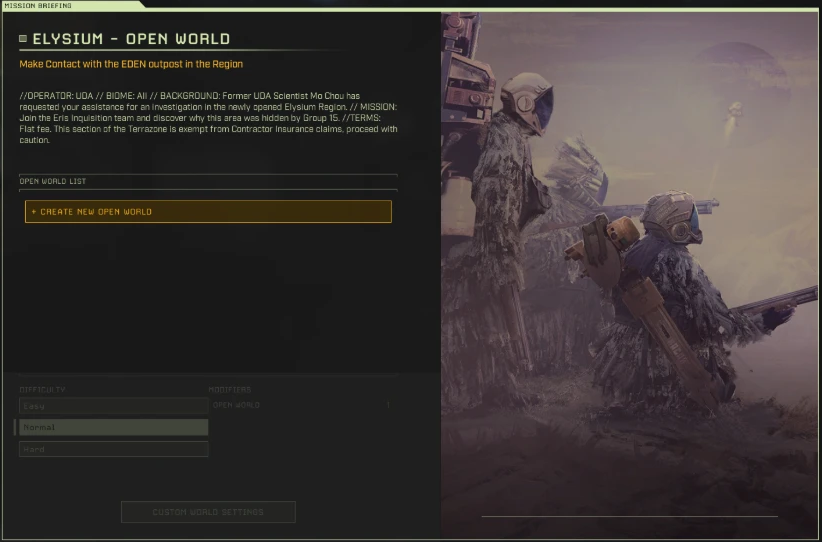
- New: start a new world. Choose Open World (a persistent world you keep coming back to), Missions or Outposts.
 For an open world, pick a map (for example Olympus or Styx), then Create New Open World, choose the difficulty and launch it.
- Load: carry on a world your service has already saved.
By default, any player who joins can start a new prospect or load a saved one. You can change this on the Config tab under Prospects (worlds):
- Players can start prospects: when this is off, only an admin can start or load a prospect.
- Players can delete prospects: off by default, so only an admin can delete one.
- Resume the last world on restart: when this is on, your service goes straight back into your last prospect after a restart instead of waiting in the lobby.
Step 4: Admin commands
Admin commands are typed into the in-game chat: press Enter to open it (the lobby shows "[Enter] to type"), then type the command starting with /. Log in first with /AdminLogin yourAdminPassword, using the admin password from the Config tab. Once logged in you can use:
/KickPlayer <SteamId or name> [reason]: removes a player. They can join again./BanPlayer <SteamId or name> [reason]: removes a player and blocks them from joining again./UnbanPlayer <SteamId or name>: lets a banned player join again./ReturnToLobby: kicks every player and returns your service to the Server Lobby./ReturnToLobbyWhenEmpty: returns to the Server Lobby as soon as the last player leaves./AdminSay <message>: shows your message to every player, without your name.
You need admin to start or load a prospect only when Players can start prospects is off, and to delete a prospect unless Players can delete prospects is on.
Still stuck?
Open a ticket and tell us your service's name. We can check what your service is running for you.
