


If you're running a private Icarus server with GG Host, you likely want control over who can join and who can use admin commands.
This guide walks you through setting both the Join Password and the Admin Password on your Icarus dedicated server, and how to remove them again if you decide to make your server public.
Step 1: Accessing the Server Control Panel
To modify your server settings, log into the GG Host server control panel powered by TCAdmin. This panel is your central hub for all server management tasks. Here's how to navigate it:
- Log In: Enter your credentials to access the dashboard. You will have received them in an email with the subject: Your Control Panel Login (These are not the same credentials used in the main website)
- Navigate the Panel: After you log in, use the side menu on desktop/console, or click the GG Host logo on your mobile browser. You'll want to click Service Management, then Game Services.
- Select Your Server: If you have more than one server, you'll need to find your Icarus server listed under "Game Services." Just click the underlined IP address to select your ICARUS service.
Step 2: Setting the Passwords via Config Editor
Icarus dedicated servers use two separate passwords:
- Join Password: The password players must enter to connect to your server. If it's left blank, anyone can join without a password.
- Admin Password: A separate password used only for admin commands, entered in-game with the
/AdminLogincommand. It has no effect on who can join the server.
If you leave the Admin Password field empty, running
/AdminLoginwith no password will still grant admin access to whoever types it.
Once you're on your Icarus service page:
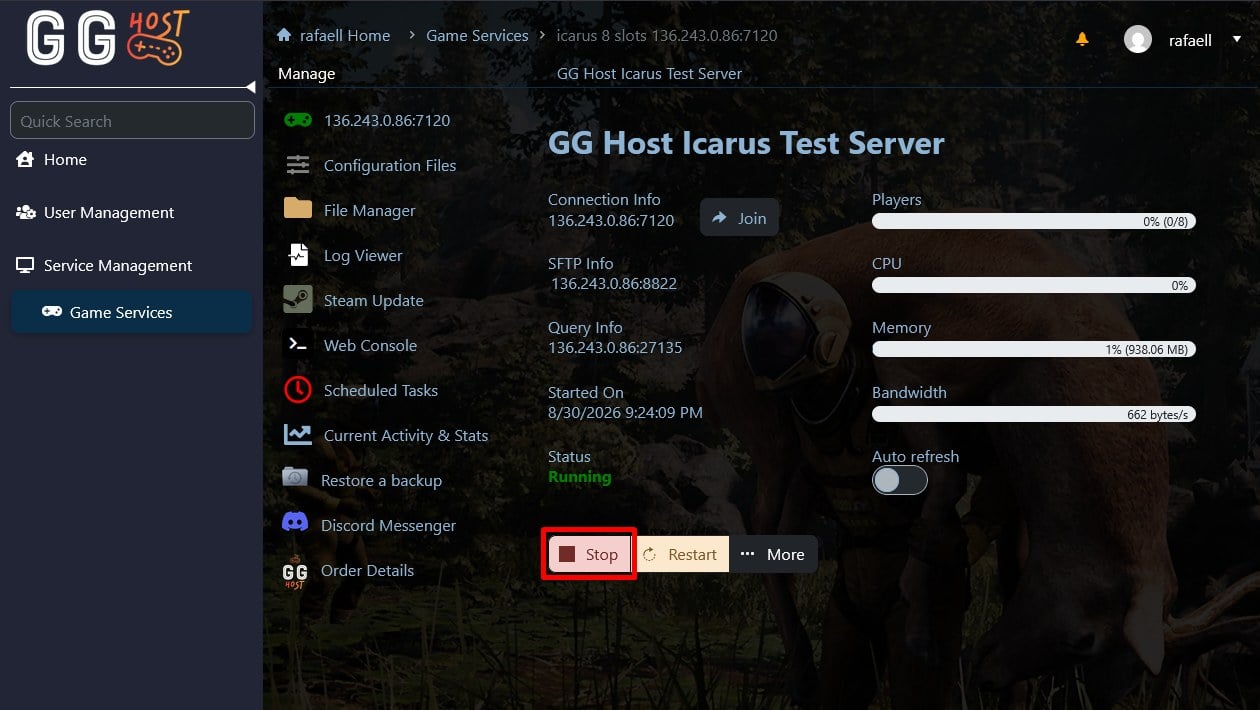
- Stop the server first. Config changes only apply cleanly if the server isn't running when you edit and restart it.
- Navigate to Configuration Files, then click Config Editor next to the
ServerSettings.inifile.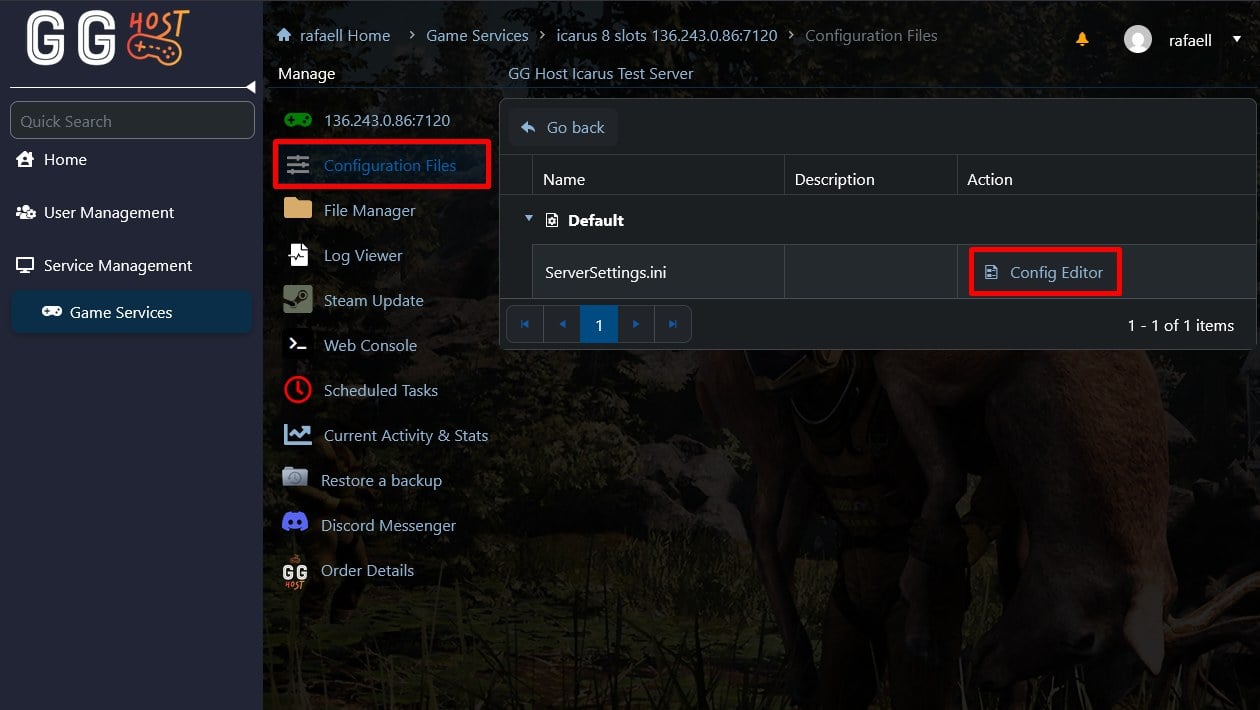
Here you'll find the JoinPassword and the AdminPassword fields.
- JoinPassword — enter the password you want players to use to join the server.
- AdminPassword — enter the password you want to use for admin commands.
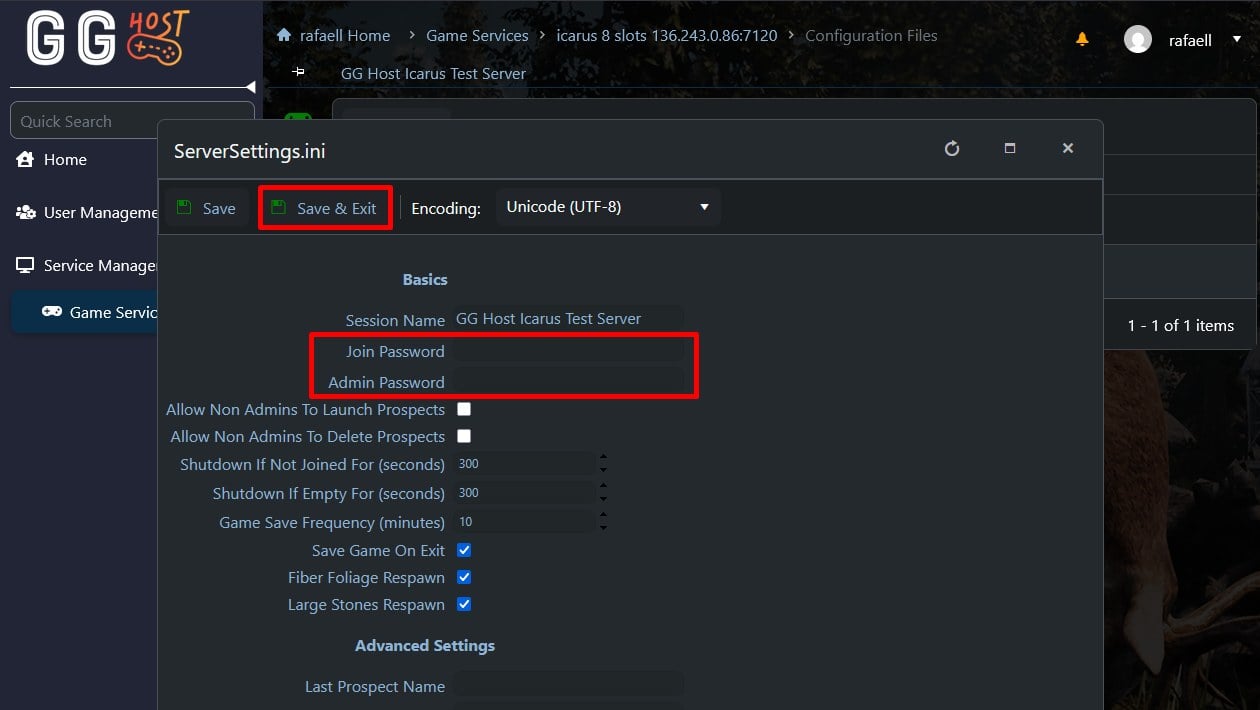
Save the configuration, making sure there are no extra spaces or typos, and start your server again. Changes only take effect after a restart.
Step 3: Using the Admin Password In-Game
Once your Admin Password is set and your server is back online:
- Join your Icarus server as normal.
- Open the in-game chat (default Enter key).
- Type
/AdminLogin YourPassword, replacing "YourPassword" with the Admin Password you set. - A successful login message confirms you now have access to admin commands for that session.
Keep in mind admin access doesn't persist between sessions — you'll need to run /AdminLogin again every time you reconnect.
Step 4: Removing a Password
To make your server public again at any point:
- Stop the server.
- Open the Config Editor for
ServerSettings.iniagain. - Delete the value after
JoinPassword(orAdminPassword), leaving it blank. - Save and restart the server.
Setting a Join Password and an Admin Password on your Icarus server through the GG Host control panel takes just a few minutes, and it's the easiest way to keep your server private and your admin commands secure. If you run into any trouble along the way, our support team is available 24/7 to help.
Need an Icarus server?
Choosing GG Host for your Icarus server hosting means securing the best possible performance, customization, and exclusive gaming experiences. Make your mark on the world of Icarus with the reliability and power of our dedicated servers, and take your survival adventure to the next level. Order your Icarus server now: https://www.gghost.games/store/icarus