


Since the Great Hall & Feasts update (August 31, 2026), custom world settings for ASKA are built inside the game itself — you create a preset in the ASKA client, upload it to your server, and pick it in the panel. The old list of individual custom settings in the server config is gone for new worlds. This guide walks through the whole thing; it takes about ten minutes.
You will need ASKA installed on your own PC, and your GG Host ASKA server.
Step 1: Start a custom game in ASKA
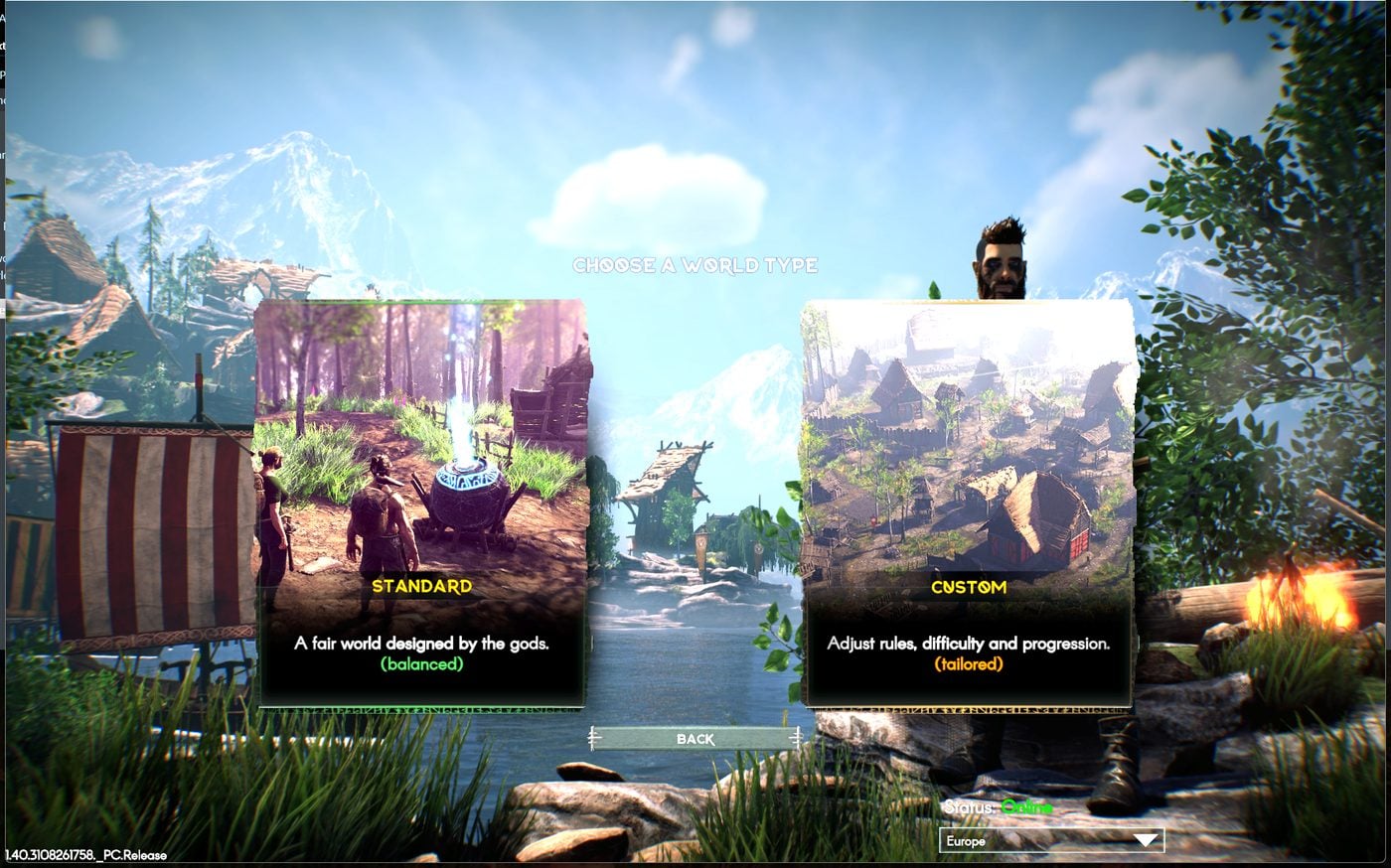
Open ASKA on your PC and begin setting up a new game. When the game asks you to choose a world type, pick CUSTOM.
Step 2: Build the world you actually want
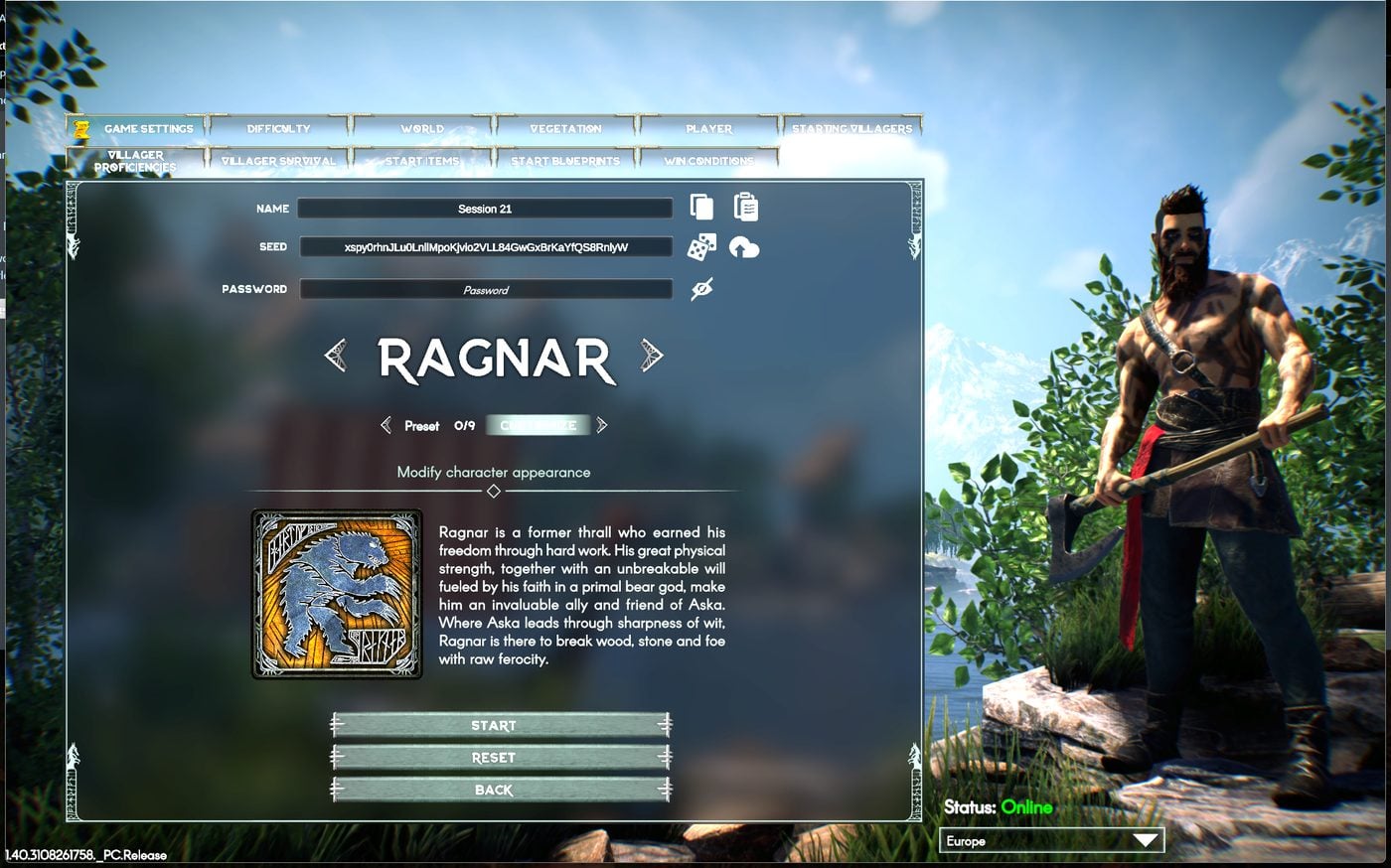
The custom editor is organised into tabs along the top: Game Settings, Difficulty, World, Vegetation, Player, Starting Villagers, Villager Proficiencies, Villager Survival, Start Items, Start Blueprints and Win Conditions. This is where everything lives now, including things the old server settings never offered: per-season lengths, starting gear and levelled tribes, invasion tuning, lake fishing limits and victory conditions.
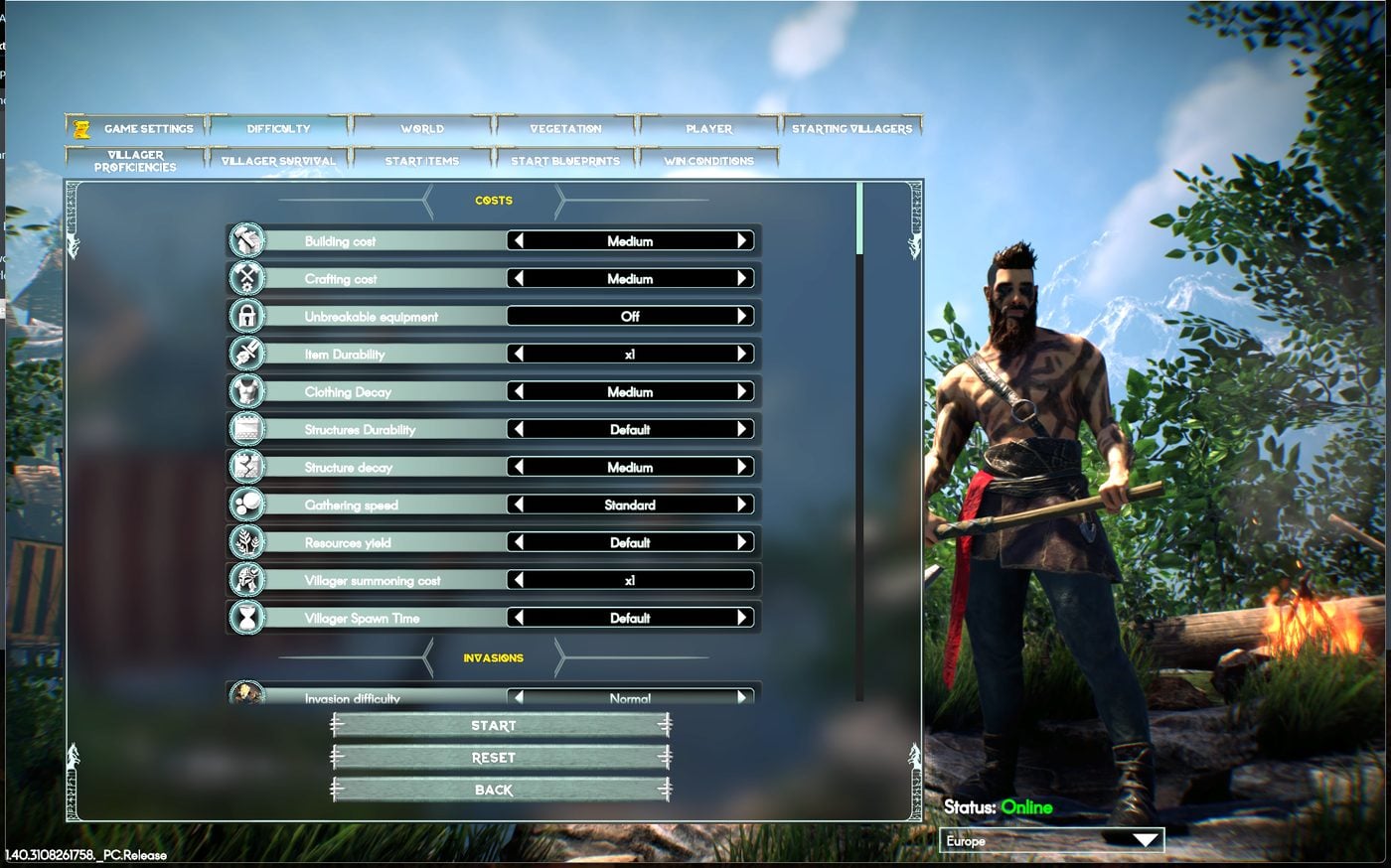
A couple of examples. Game Settings holds the economy of your world: building and crafting costs, item and clothing durability, structure decay, gathering speed and resource yield, and the invasion settings.
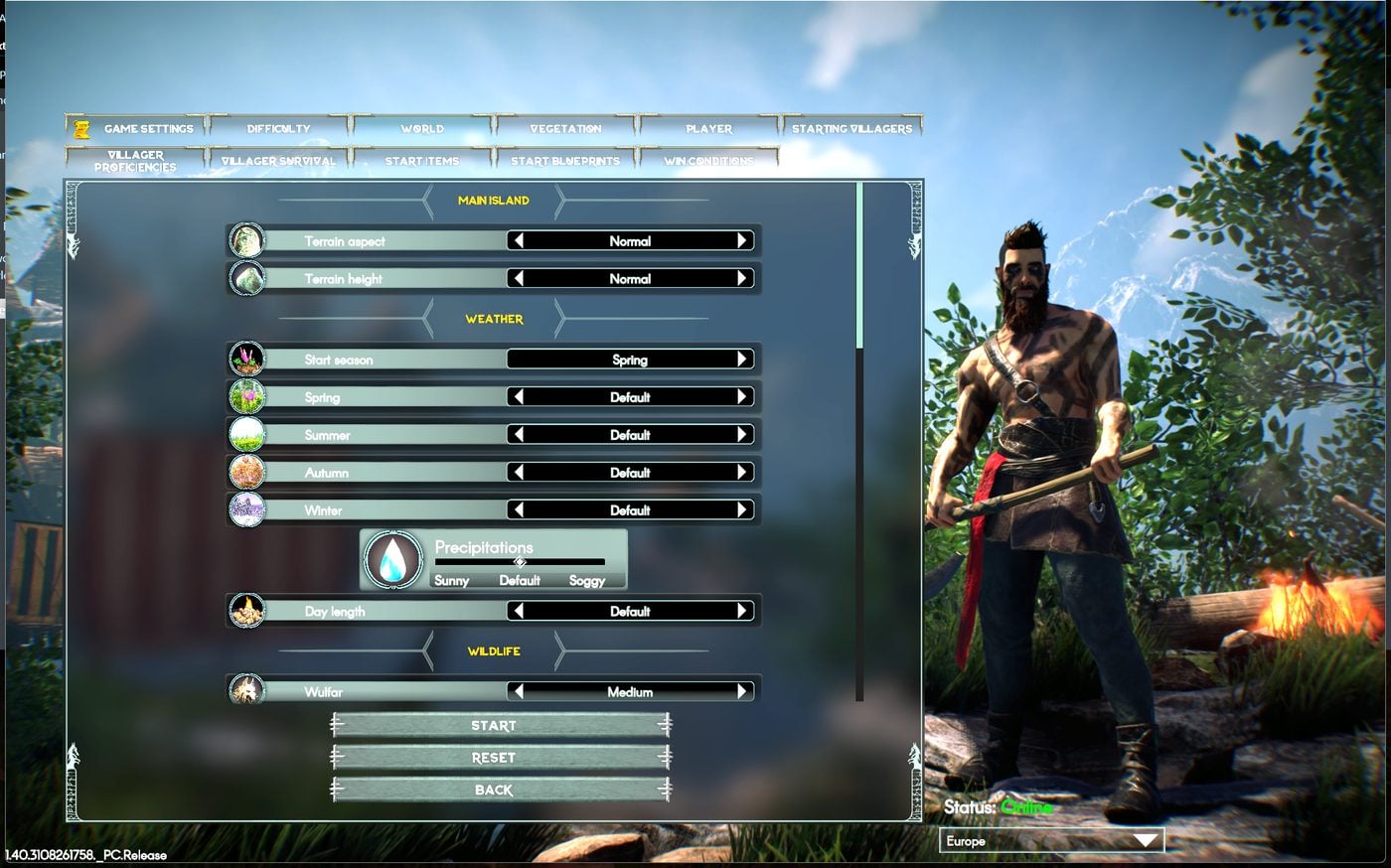
The World tab covers terrain, weather and wildlife, and this is where you set the starting season, the length of each individual season, rainfall and day length.
Step 3: Save it as a preset
Back on the session screen, look at the icons to the right of the session name. The first one saves the current world settings as a preset to reuse later — that is the one you want. Click it and give your preset a name. You do not need to start the game; once the preset is saved you can back out.
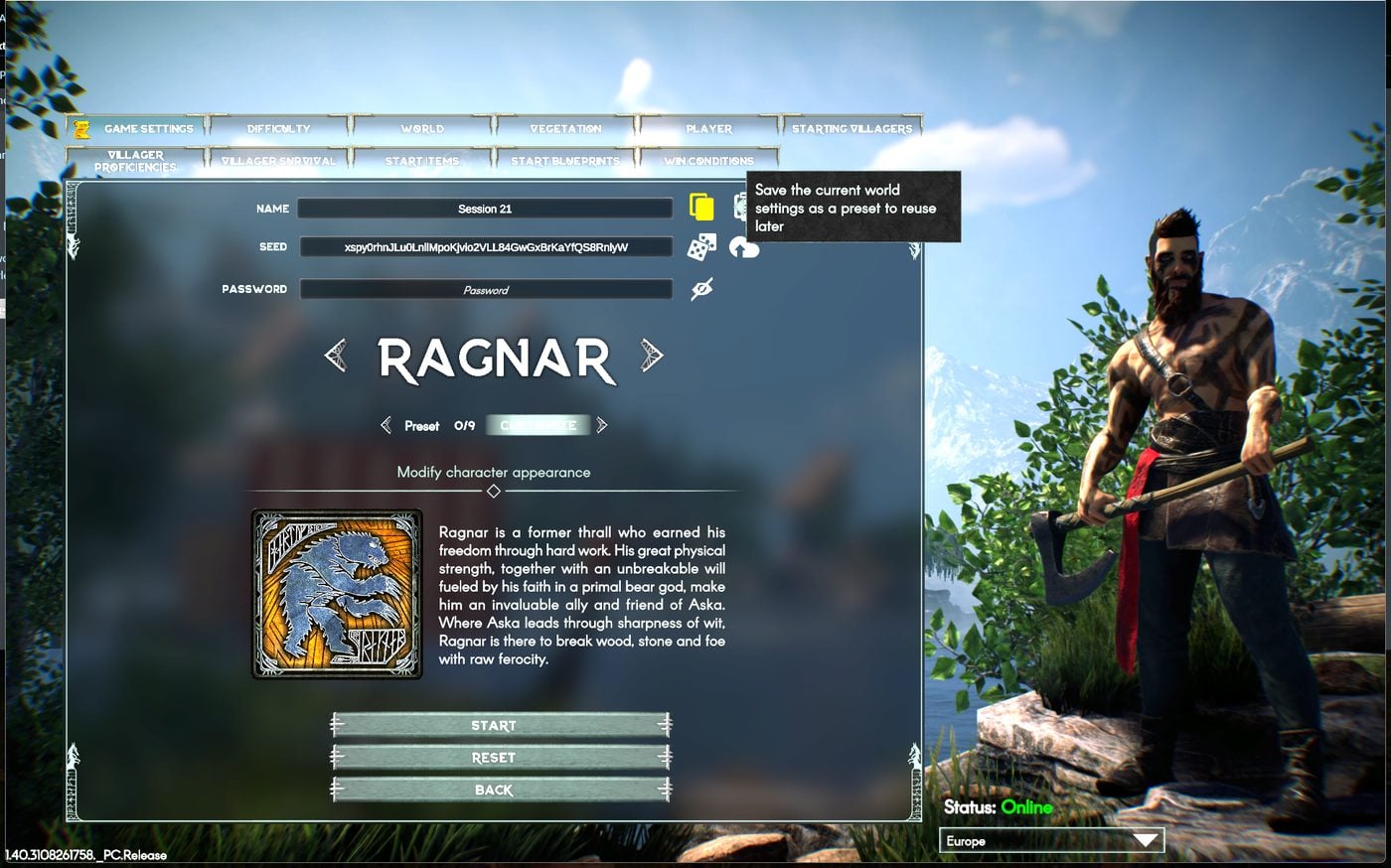
Step 4: Find the preset file on your PC
ASKA writes presets to a folder in your Windows profile. Paste this into the address bar of File Explorer:
%USERPROFILE%\AppData\LocalLow\Sand Sailor Studio\Aska\data\WorldCustomizationPresets
Your preset is there as a small file named worldCustomization_ followed by the
name you gave it.

Step 5: Upload it to your server
In your GG Host panel, open your ASKA service and go to the File Manager. Open
the presets folder, click Upload, and select your
worldCustomization_ file from the folder above.
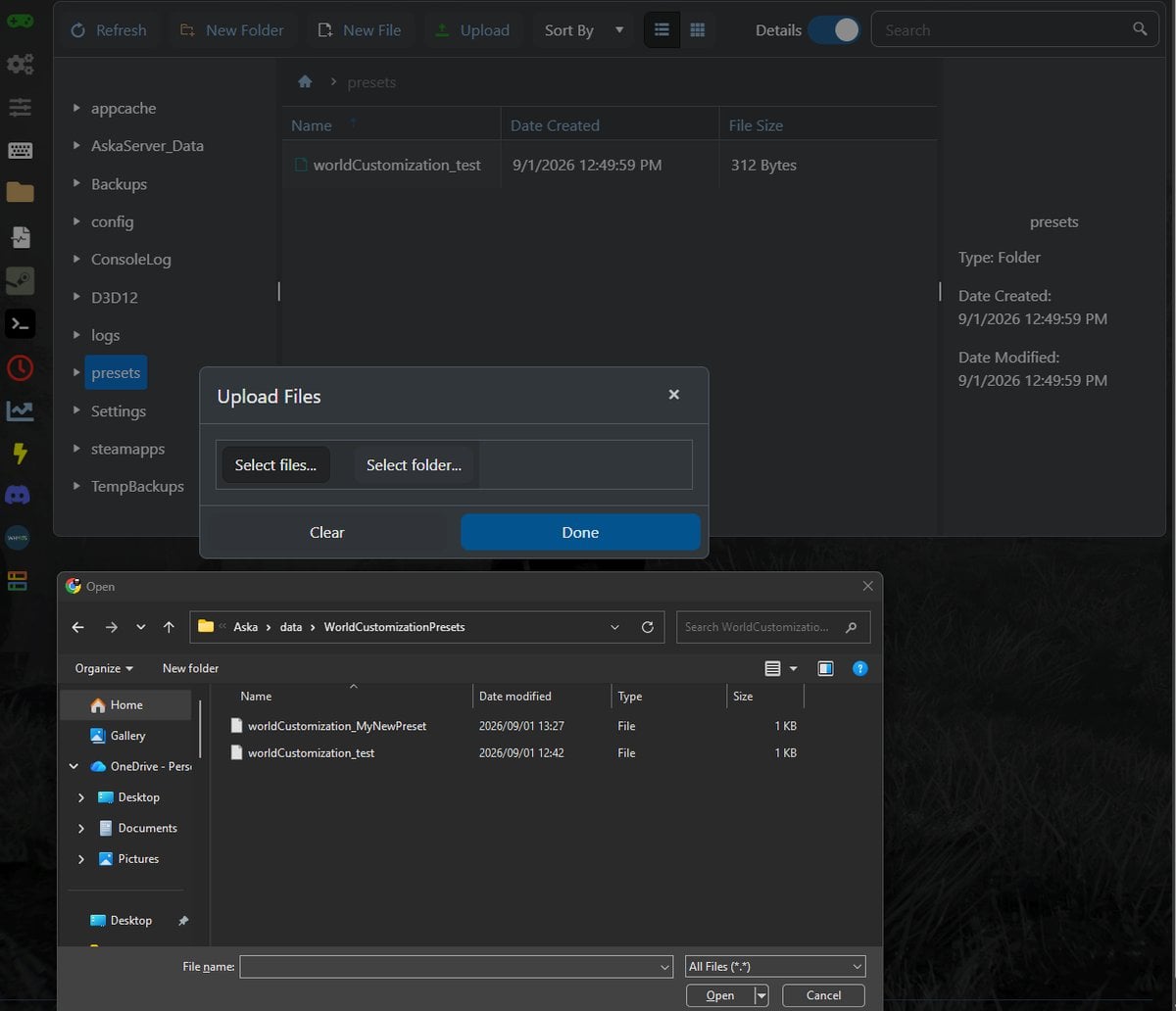
After the upload you should see it sitting in the presets folder:
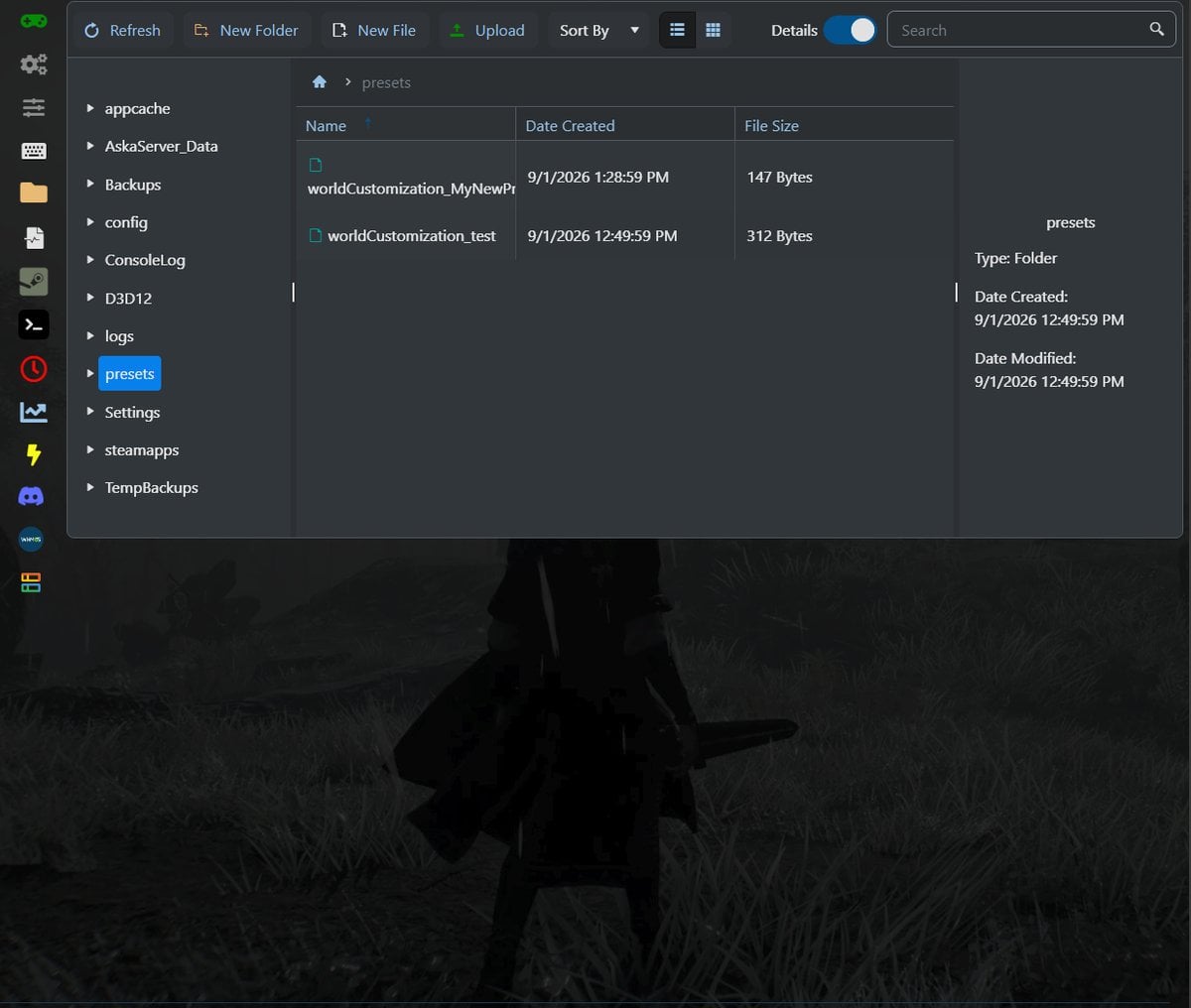
Step 6: Point your server at the preset
Go to Configuration Files and open server properties.txt with the
Config Editor. Set Mode to Custom — the
Custom Game Preset dropdown appears as soon as you do — then pick your
uploaded preset from the list and save.
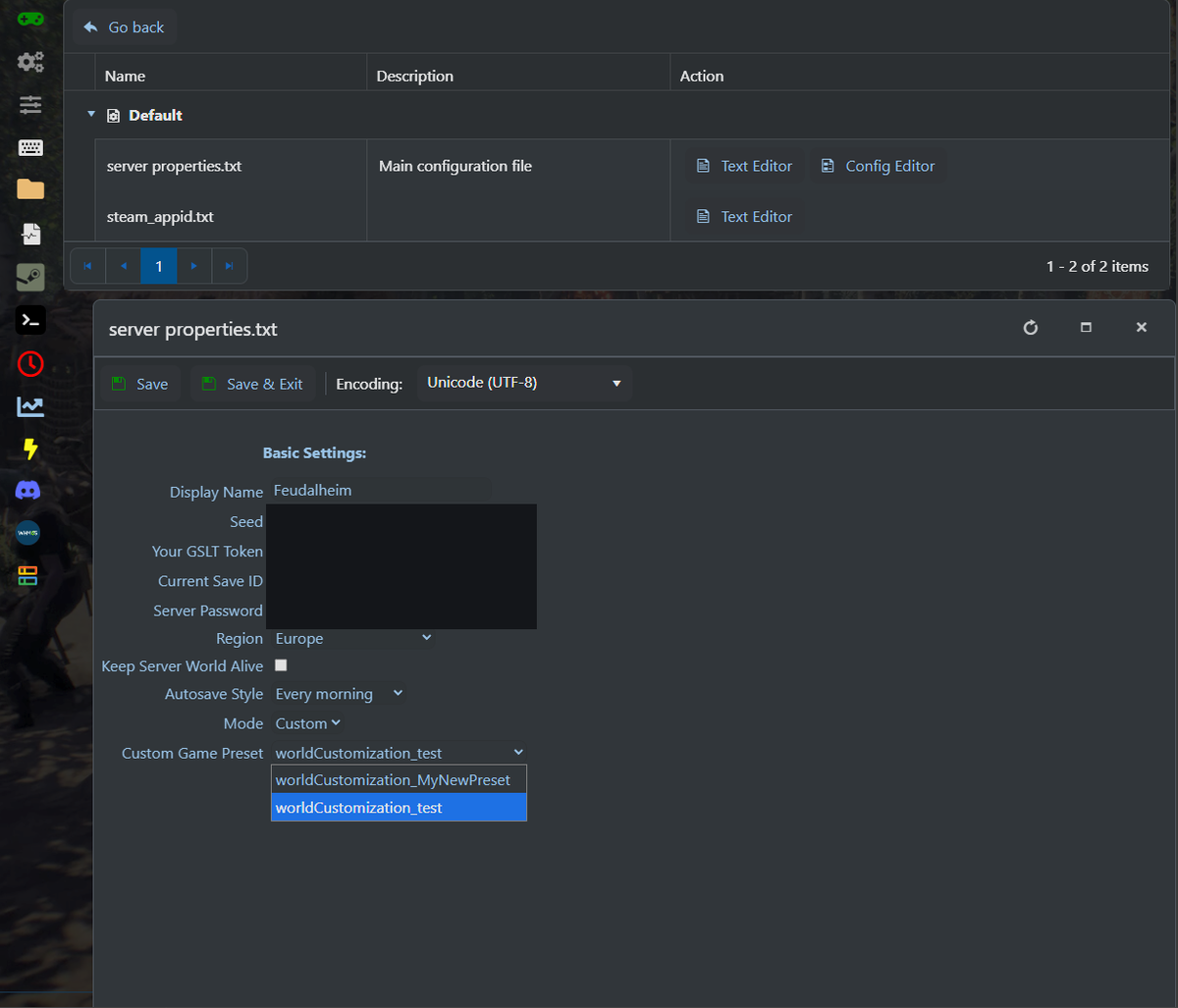
If your preset is missing from the dropdown, it usually means the file was uploaded somewhere other than the presets folder, or the settings page was open before you uploaded it. Re-open the page and it will re-read the folder.
Step 7: Restart, and one important thing about worlds
Restart the server so the new configuration is read.
A preset shapes a world when that world is first created. By the game's own configuration notes, loading an existing save keeps the settings that world was created with — so applying a preset to a server that already has a world will not reshape it. To play your preset, start a fresh world. Your existing world stays untouched and you can switch back to it at any time.
To run a standard world instead, just set Mode back to Normal.
If anything here does not behave the way this guide says, open a ticket and we will look at your service with you.
Need an Aska server? Ours deploy within minutes of checkout on 2 NVMe SSDs, and scale in 1 GB steps from 4 GB. Aska server hosting →