


Every Wardogs community server, whichever approved host it runs with, is managed through the same tool: BULKHEAD's web RCON console at rcon.wardogs.com. It is where you kick and ban players, build your map rotation, end or restart a match and talk to the server. This guide walks through each part of it, then shows where to find your login details in the GG Host control panel.
You can try the whole tool before you own a server. Open it, leave all three fields blank and press Connect, and it loads a demo server with fake players, bans and a rotation to click through. Nothing you do there touches a real server.
Logging in
The login screen asks for three things: the Server IP, the Port (the RCON port, not the game port) and the Password (the RCON password). Your host gives you all three. Tick Save password for 30 days and the server goes into a saved list in that browser, so next time it connects in one click. You can add more servers with + Add Server and switch between them from the top left.
One thing catches people out: the tool talks to your server over plain HTTP, so the page has to be loaded as http://rcon.wardogs.com. If your browser opens the https:// version, it blocks the connection and the tool tells you so. Change the address back to http:// and connect again.
Anyone with the RCON password has full control of the server. There is only one password and no read-only login, so give it only to admins you trust, and change it if someone leaves your admin team. On GG Host you set a new one under Config, on the Remote console tab: type the new password, press Save changes, and it reaches the server the next time it starts.
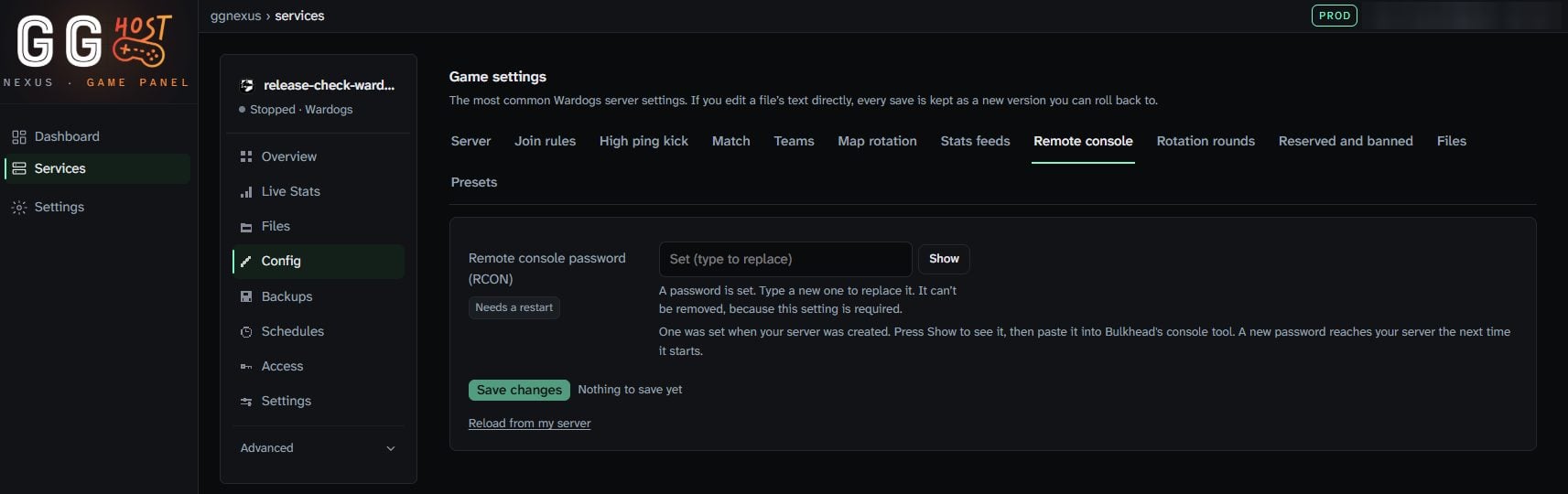
Overview: the match at a glance
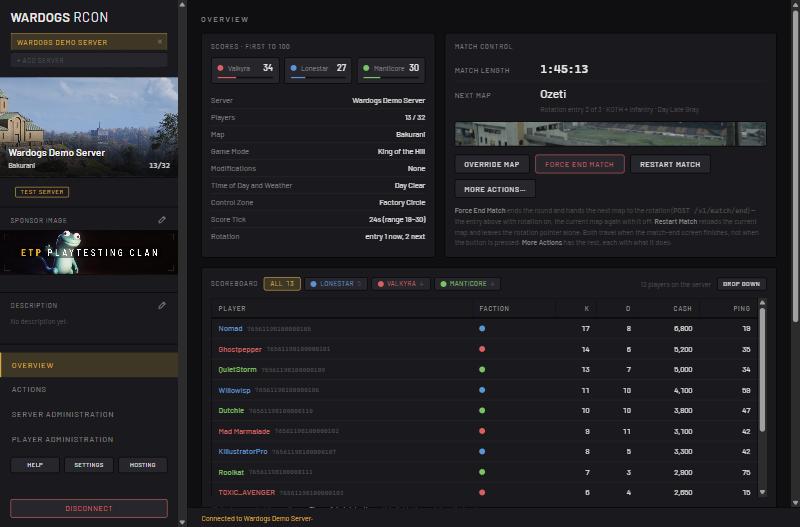
The Overview page shows the three faction scores, the map, game mode, modifications, time of day and weather, the active control zone and where the match sits in your rotation. Below that is a live scoreboard with every player's faction, kills, deaths, cash and ping, and a chart of the cash each faction has earned this match.
The Match Control box has the four buttons you will reach for most:
- Override Map picks a map, game mode, modifications, time of day and control zone, then either queues it as the next map or travels to it now.
- Force End Match ends the round and moves to the next entry in your rotation. With rotation turned off, the same map loads again.
- Restart Match reloads the current map and resets the scores, but leaves your place in the rotation alone.
- More Actions opens the full list (see Actions below).
Two details. The map change happens when the match-end screen finishes, not the moment you press the button. And Restart Match restarts the match, not the server: the server keeps running and does not re-read its settings. Changes that need a full server restart have to be restarted from your host's control panel.
At the bottom of the page, Admin Announcement sends a message to everyone on the server.
Actions: every command in one place
The Actions page lists everything the tool can send to a running match, each with a short note on what it does:
- Match: Override Map, Force End Match, Restart Match and Force Next Map (the same as Force End Match, named for what it does when rotation is on).
- Send Announcement: one message to every player, with a count of how many received it. It cannot be recalled, and there is no way to schedule or repeat one.
- Send Whisper: a message only one player sees. Useful as a warning before a kick.
- Move Player to Faction: moves a connected player to the faction you pick.
Player Administration: kicks, bans and reserved slots
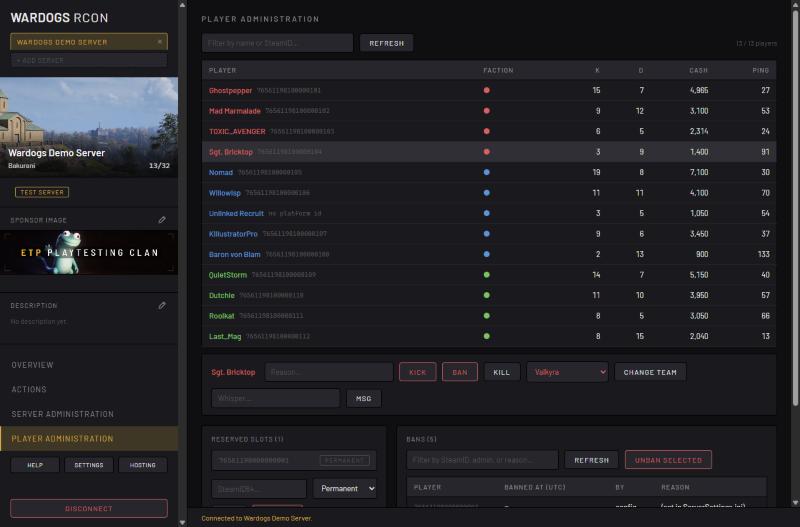
This page lists everyone on the server with their SteamID64. Click a player to open the action bar: type a reason, then Kick or Ban them. The same bar has Kill, Change Team (pick a faction from the list) and a whisper box with Msg. The filter box at the top finds a player by name or SteamID.
The Bans list shows every banned SteamID64 with when they were banned, which admin did it and the reason. Tick one or more and press Unban Selected to lift them. You can filter the list by SteamID, admin or reason, which helps once it gets long.
Reserved Slots keep a place open for listed players when the server is full. Paste a SteamID64, choose Permanent or a length from 1 to 30 days, and press Add. Good for clan members, streamers or your regulars. The number of reserved slots the server holds back is set separately (Maximum Reserved Slots, under Server Administration).
Bans and reserved slots are stored as 17-digit SteamID64s with no name attached. To see Steam names and avatars instead, open Settings in the tool and enable Steam account linking. You need your own free Steam Web API key for that, from steamcommunity.com/dev/apikey.
Map rotation: Infantry and Hardcore included
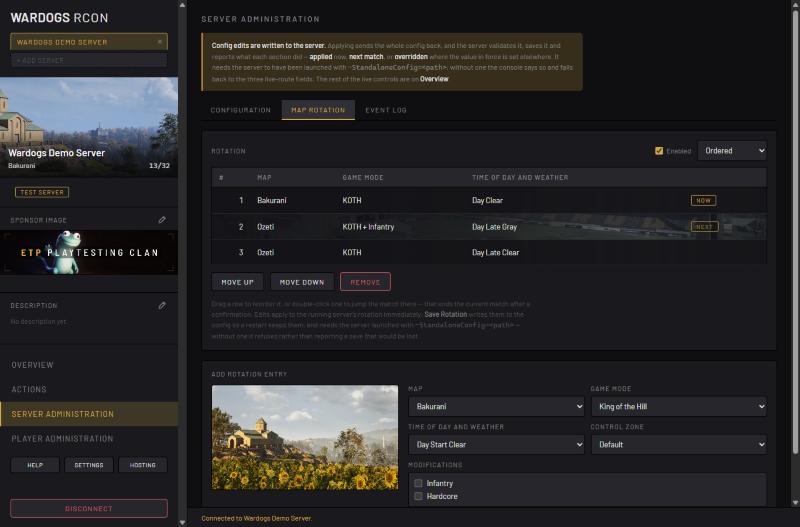
Under Server Administration, the Map Rotation tab is where you decide what your server plays. Each row in the rotation is one match: a map, a game mode, a time of day and weather, and optional modifications. The current match is marked NOW and the next one NEXT.
To add a match, fill in Add Rotation Entry: pick the map, game mode, time of day and weather, and control zone, tick Infantry and/or Hardcore under Modifications if you want them, and press Add to Rotation. This is how you run an Infantry-only server: make every entry an Infantry entry.
Reorder entries by dragging them or with Move Up and Move Down, and delete one with Remove. Double-clicking a row jumps the server to that match (after a confirmation, because it ends the current one). The checkbox and menu at the top turn rotation on or off and choose Ordered or Random.
Edits apply to the running server straight away, but only Save Rotation writes them to the server's config. Press it when you are happy with the list, or the next restart puts the old rotation back.
Configuration: server settings and when they apply
The Configuration tab holds the server's settings: name, maximum players, join password, the minimum and maximum player cash and level allowed to join, maximum reserved slots, the pre-match minimum player count, the score tick timer, team balancing (lock overpopulated teams, and the population threshold that triggers it) and map rotation on or off.
Every field carries a coloured tag that tells you when a change takes effect:
- Live Update: in force as soon as you press Apply, for the match being played now.
- Next Match: saved now, but the current round keeps the old value.
- Server Restart: saved, but only takes effect after the server itself restarts (Maximum Players is one of these).
- Overridden: your value is saved, but a setting elsewhere outranks it, so it is not the one in force.
Nothing is sent until you press Apply, so you can change several fields and send them together. Revert throws away changes you have not applied yet. The server checks the whole config at once: either all of it goes through or none of it does, and the tool reports back what happened to each section.
The same tab sets the server image, the banner players see beside your server in the in-game browser. It must be a direct link to a 1024 x 256 PNG or JPEG on one of the image hosts the server accepts (catbox.moe, imgbb.com or postimg.cc). If the banner stays blank, the link most likely points to a web page rather than the image file itself.
On GG Host, two of these are fixed by the control panel. Maximum players comes from your plan's slot count, and the server name is set under Config on the panel's Server tab: a name changed in the RCON tool does not stick.
Event Log: who did what
The Event Log tab shows recent console activity with timestamps: logins (including failed ones), and every command sent, such as kicks, map changes and broadcasts. If you share admin duty, this is how you check what happened while you were away. The same tab shows whether your server's match-event feeds are reaching the stats sites you send them to. The feeds themselves are set in the server's config file, which on GG Host means the Stats feeds tab under Config in the control panel (up to four addresses, applied when the server restarts).
BULKHEAD's rules for community servers
Cash and XP earned on a community server count on players' main accounts, so BULKHEAD polices how servers are run. BULKHEAD permanently bans accounts caught XP farming, and its Season 02 patch notes say community server hosts seen exploiting the losing-faction bonus will be punished. Set up your rotation and team balancing for real matches, not farming.
Opening the RCON tool from your GG Host control panel
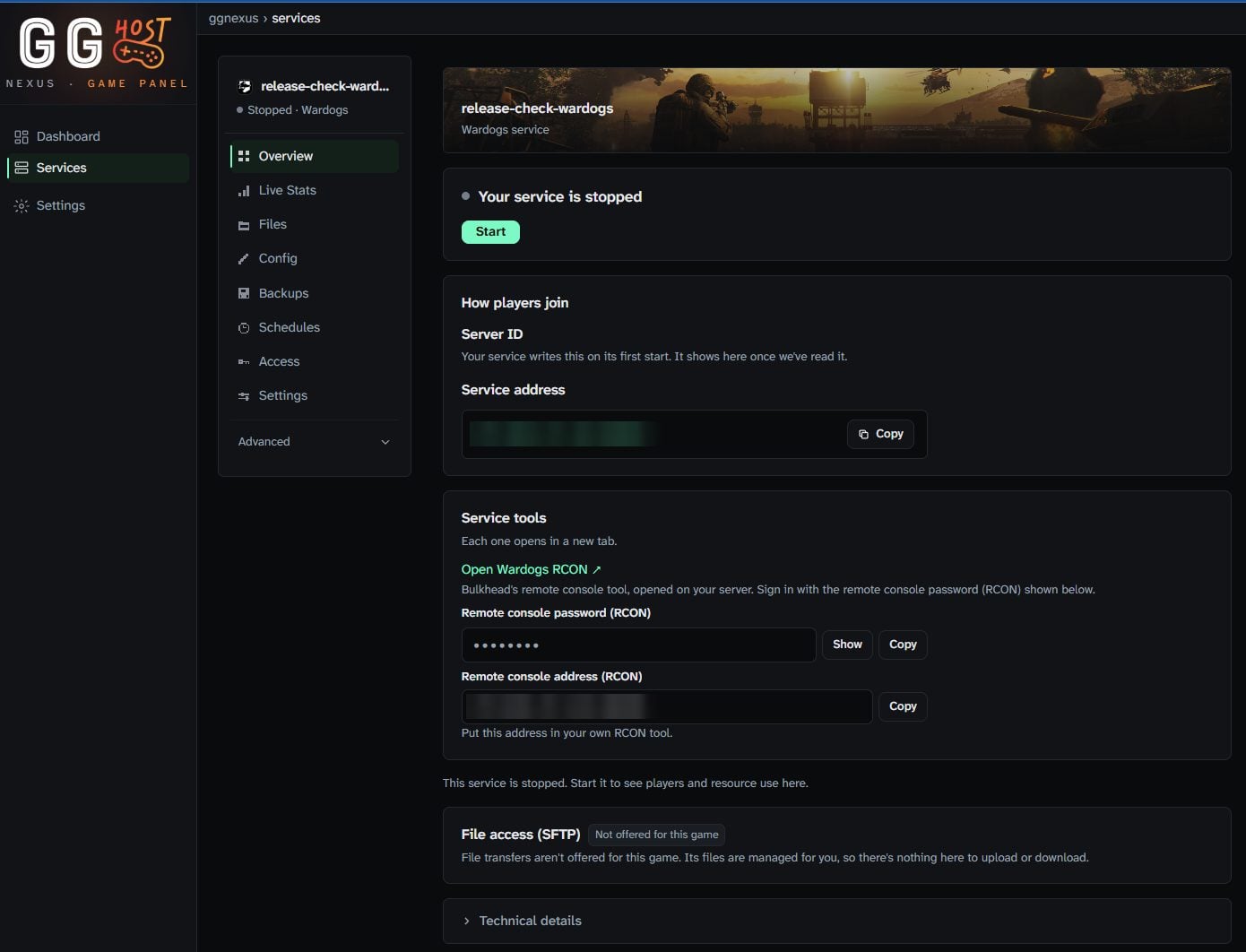
- In the GG Host control panel, open your Wardogs service.
- On the Overview, find the Service tools card.
- Press Copy beside Remote console password (RCON). It copies without showing the password on screen; use Show if you need to read it.
- Press Open Wardogs RCON. BULKHEAD's tool opens in a new tab with your server's IP and RCON port already filled in.
- Paste the password into the Password field and press Connect.
The same card shows your Remote console address (RCON), the IP and RCON port together, with its own Copy button. Use it if you run a third-party RCON tool instead of BULKHEAD's; it takes the same address and password.
The control panel's Config page covers things the RCON tool does not: the server name, the banner picture, a daily restart time, the high ping kick, the RCON password and your stats feeds, each on its own tab. Join rules, team balancing and rotation order appear in both places and change the same server config, so use whichever you have open.
Don't have a server yet? See Wardogs server hosting on GG Host.