


Two players in the same city, on different ISPs, can get very different ping to the same game server. This is normal. It comes from the route each ISP chooses to reach the server, not from the server itself.
This guide explains why it happens, how to check your own route with MTR, and what you can do about it: Cloudflare WARP, a well-prepared request to your ISP, or a different server location.
How your connection reaches a game server
Your traffic crosses several separate networks on the way to a server, and each one decides its own next step:
- Your home network and router.
- Your ISP's network inside your country.
- The carriers your ISP pays to carry traffic abroad (transit), or networks it connects to directly (peering).
- The network of the datacentre that hosts the server.
- The game server.
No single company controls this path. Each network hands your traffic to the next one based on its own agreements and costs. Your ISP controls the first part of the path and the datacentre controls the last part. Everything in between is decided by whichever carriers those two networks happen to use.
Why players in the same region can take different routes
Ping is mostly distance. Light in a fibre cable covers about 1,000 km in 5 ms, so every 1,000 km of detour adds roughly 10 ms to your round trip. A detour through another continent adds 100 ms or more.
Two ISPs in the same country rarely use the same international carriers. Each buys transit from different carriers and peers with different networks. If one ISP's carrier meets the datacentre's network nearby, traffic takes the short path. If the other ISP's carriers only meet the datacentre's network far away, traffic goes the long way around, even though a shorter cable exists.
A real example from one of our Singapore servers: a player in Thailand reached another Singapore address in 45 ms. The same player's traffic to our server was handed to a carrier in Los Angeles and carried back to Singapore, giving 210 ms. Same player, same country, same destination city. The only difference was which carrier the ISP used for that destination.
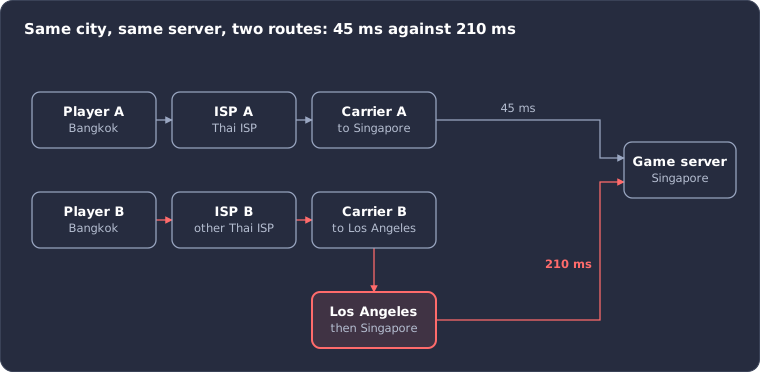
Player B's ISP hands traffic to a carrier that only meets the datacentre's network in Los Angeles, so the same destination costs 165 ms more.
Common reasons an ISP ends up on a long route:
- Cost. Transit is paid for by volume, and the cheapest carrier is often not the shortest path.
- Peering. The ISP's carriers do not exchange traffic with the datacentre's carriers in your region, so the handover happens on another continent.
- Capacity. A congested link makes an ISP shift traffic to another carrier.
- Change. ISPs and carriers change agreements all the time. A route that was fine last month can change overnight, with nothing changing on the server.
What we can and cannot do
Our game servers run in datacentres operated by our infrastructure providers. The route your traffic takes to those datacentres is chosen by your ISP and by the carriers between you and the datacentre. We cannot set the path a specific ISP uses, and we cannot raise routing requests with datacentre providers on behalf of individual ISPs or players.
What we can do:
- Confirm the server itself is healthy, so you know the delay is on the route and not on the server.
- Tell you which other locations are available for your server. A different datacentre means different carriers and often a different route.
How to tell a routing problem from a server problem: if only some players have high ping while others in the same region are fine, the server is not the cause. If every player has high ping at the same time, open a ticket with us.
Rule these out first
Before you blame the route, make sure the problem is not closer to home.
- Test on a wired connection. Wi-Fi adds jitter and packet loss that look like routing problems in an MTR.
- Compare with a player on a different ISP in your area. If they are fine and you are not, it is the route.
- Check the time of day. High ping only in the evening is usually congestion on your ISP's international links, not a long route. The MTR will show latency rising at the same hop every evening, but the hostnames will not show a detour city.
- Do not expect a router restart to help. Your ISP's routers choose the international route, not yours.
Check your route with MTR
MTR shows every network hop between you and the server, with the latency and packet loss at each one. It is the one piece of evidence an ISP will act on, so run it before you contact them.
Traceroute (tracert on Windows) shows the same path but only sends three packets per hop. MTR sends hundreds over a few minutes, which makes it far more reliable at showing where the delay starts.
You need the server's IP address. You can find it in the game panel or in the game's server browser. Run the test on a wired connection, at the time you are actually seeing the problem.
Windows
- Download WinMTR Redux. It is free and needs no installation.
- Open WinMTR, type the server IP in the Host box and click Start.
- Leave it running for at least 5 minutes.
- Click Stop, then Copy Text to clipboard. Paste the result into a text file or straight into your ISP ticket.
If you cannot download anything, Windows has a built-in alternative. Open Command Prompt and run pathping <server IP>. It takes about 5 minutes and prints a similar report.
macOS
- Install Homebrew if you do not have it, then open Terminal and run
brew install mtr. - Run
sudo mtr -rwc 100 <server IP>. This sends 100 packets to each hop and prints a report when done. If you get "command not found", runsudo $(brew --prefix)/sbin/mtr -rwc 100 <server IP>instead. - Copy the whole output.
Linux
- Install it:
sudo apt install mtron Debian or Ubuntu,sudo dnf install mtron Fedora. - Run
sudo mtr -rwc 100 <server IP>. - Copy the whole output.
Run it twice
Run a second MTR to another server in the same city that you get a good ping to, for example another game server or a speed test server in that city. This shows your ISP that your connection to the city is fine, and that the problem is the route to one specific network.
How to read the result
- Look down the average latency column. Find the first hop where latency jumps and stays high for every hop after it. That is where the detour starts. In the example above, hops 1 to 7 were about 20 ms, hop 8 was 210 ms, and every hop after it was also 210 ms.
- Hostnames often contain airport codes that give away the city: lax is Los Angeles, sin is Singapore, fra is Frankfurt, lhr is London, ams is Amsterdam, jnb is Johannesburg. A city on another continent between you and the server is the detour.
- Ignore a single hop that shows high latency or loss when the hops after it are fine. Some routers answer MTR slowly, or not at all, on purpose. Only loss that continues all the way to the last hop is real.
- Hops shown as
???or*are routers that do not reply. They are normal if the hops after them are fine. - The last line is the server. Its average is your real round trip time, and its loss is your real packet loss.
Option 1: Cloudflare WARP
WARP sends your traffic to the nearest Cloudflare datacentre first, then across Cloudflare's own network to the server. Cloudflare connects directly to a very large number of networks, so the route from Cloudflare to the datacentre is often shorter than the one your ISP picks. It is free and takes a minute to try.
- Download the 1.1.1.1 app from one.one.one.one and install it.
- In the app's settings, make sure the mode is "1.1.1.1 with WARP", not "1.1.1.1" on its own. The DNS-only mode does not change your route.
- Turn it on, join the server and check your ping.
- Turn it off and check again. Keep whichever is better.
Things to know before you rely on it:
- It does not help everyone. For some ISPs the route through Cloudflare is longer. Always compare on and off.
- The server sees a Cloudflare IP address instead of your own. If the server uses an IP whitelist, or you have a reserved slot tied to your IP, tell the admin.
- Some games and anti-cheat systems treat WARP like a VPN. Check your game's rules before using it for competitive play.
- Free WARP uses Cloudflare's normal routing. The paid WARP+ tier adds Cloudflare's optimised routing, which can help further, but you do not need it to test.
- Paid gaming VPN services work on the same principle. They replace your ISP's international route with their own. The same advice applies: test with it on and off.
Option 2: Contact your ISP
Your ISP is the only party that can change the route, and ISPs only act on requests from their own customers. We cannot open the request for you. A clear ticket with an MTR attached has a real chance of reaching the network team. "My ping is bad" does not.
Before you write, run MTR to the server and to a comparison address in the same city while the problem is happening. Note the date, time and your public IP address (search "what is my IP").
Include all of this:
- The server IP and the city of the datacentre.
- The ping you get to the server, and the ping you get to the comparison address.
- The hop where latency jumps, its hostname, and the detour city if the hostname shows one.
- Both MTR outputs as text, not screenshots. Text can be searched and forwarded.
- Date, time, timezone, your connection type and your public IP.
- A specific request: check how traffic to that destination is routed internationally, and whether it can go through a carrier or peering point in your region.
Template, with the parts in brackets replaced by your own details:
Subject: High latency to [datacentre city] caused by international routing

Hello,

I am a [ISP name] customer at [your public IP]. I am getting [210] ms to [server IP] in [Singapore], while I get [45] ms to [comparison IP] in the same city.

The MTR below shows latency jumping from [20] ms to [210] ms at hop [8] ([hostname of that hop]), with the path going through [Los Angeles] before returning to [Singapore].

Could you please check how traffic to [server IP] is routed internationally, and whether it can be sent through a carrier or peering point in [your region] instead?

MTR to [server IP], run on [date, time, timezone]:
[paste]

MTR to [comparison IP], run at the same time:
[paste]

Thank you
[your name]
[account number or phone number on the account]
If first-line support closes the ticket with "restart your router", reply and ask for it to be passed to the network or NOC team. Several reports about the same route carry more weight than one, so if other players on your ISP have the same problem, ask them to open their own tickets with their own MTRs.
Option 3: A different server location
A different datacentre uses different carriers, and a route that is bad to one city can be fine to the next. A location that routes well for one ISP can be worse for another, so no single location is best for everyone. Ask our support team which locations are available on your plan. Where a region has availability, we can give you an IP address there to run an MTR against before you commit.
Frequently asked questions
My ping was fine last week. What changed?
Routes change when ISPs or carriers change agreements, or when a link fails and traffic is moved. Nothing changed on the server. Run a new MTR and compare it with the old one if you have it.
Can you ask your datacentre to fix my ISP's routing?
No. Our players connect through a great many ISPs, and we cannot handle routing requests for each one. The datacentre cannot force your ISP to choose a different carrier either. Your ISP holds the lever, and it acts on requests from its own customers.
Is a VPN the same as WARP?
In principle, yes. Any VPN replaces your ISP's international route with the VPN provider's route from its exit point. Whether it helps depends on where that exit point is and how well the VPN provider is connected.
Why is the in-game ping higher than the MTR shows?
The game measures round trip over its own protocol and includes the server's processing time. A difference of 10 to 20 ms is normal. A difference of 100 ms or more usually means the game is using a different port or protocol that your ISP handles differently, which is worth mentioning in your ISP ticket.