


GG Nexus has two ways to give someone else access to your service. People (friends, co-admins, your community's staff) get an invite by email and sign in with their own account. Bots and scripts (a Discord bot, a stats or log tool, a sync script) get a bot login, which is an SFTP username and password and nothing more.
Both are on the same page: open your service and click Access. It has three tabs across the top: People with access, IP addresses and Bot logins. This guide covers the first and the last.
Which one do I need?
- A person who should use the panel (restart the service, change settings, read the console): invite them under People with access.
- A program that reads or writes files (log files for a stats bot, a config sync): make a bot login under Bot logins. A bot login has no email and cannot sign in to the panel, so it only ever reaches the files you give it.
Invite a person
- Open your service, click Access and stay on People with access.
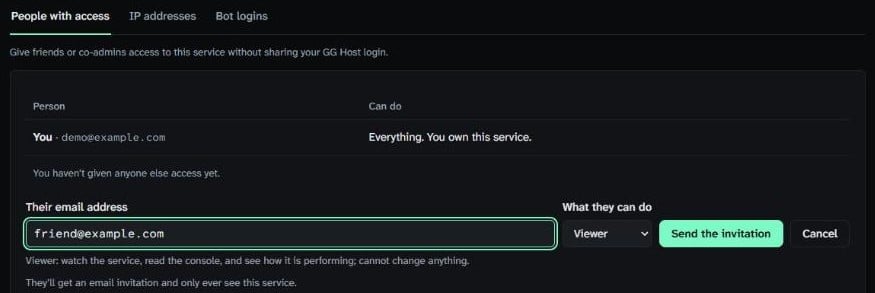
- Click Invite someone.
- Enter their email in Their email address.
- Under What they can do, pick a role (see below). It starts on Viewer.
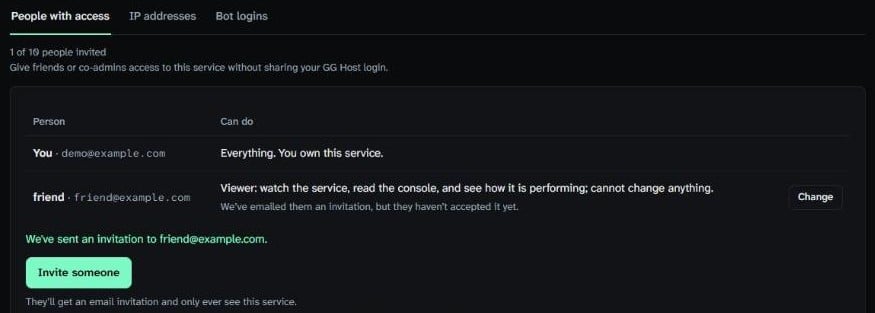
- Press Send the invitation. You will see "We've sent an invitation to" followed by their email.
The four roles, from most to least:
- Co-admin: manage and restart the service, edit its files and settings, take backups, update the game, connect over SFTP, and block or allow player IP addresses. Cannot delete backups, reinstall the service or invite others.
- Operator: start, stop and restart the service, use the console, run actions, update the game, and download files in the panel. Cannot change settings, take backups or connect over SFTP.
- File viewer: watch the service, read the console, and browse and download its files in the panel or over SFTP. Cannot change anything.
- Viewer: watch the service, read the console and see how it is performing. Cannot change anything.
Give people the smallest role that lets them do their job. Someone who only restarts the service when it hangs needs Operator, not Co-admin.
They get an email with a link, and sign in with their own account, never yours. They only ever see this service, not the rest of your account. The link works for 72 hours. Until they accept, their row says they have been emailed but have not accepted yet. If the link ran out or the email went missing, click Change on their row and press Send the invitation again; that sends a fresh link, good for another 72 hours.
You can invite up to 10 people to each service. Only you, the owner, can invite people or change what they can do.
Change what someone can do, or remove them
Click Change on their row. A strip opens under it with everything you can do for that person.
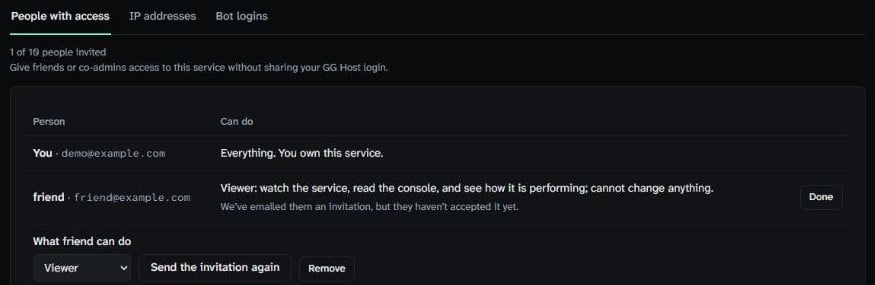
- Change a role: pick a different role in the list. It saves as soon as you pick it; press Done to close the strip.
- Remove someone: press Remove. The button turns into Yes, remove for a few seconds: click it again to confirm. If they have the panel open, they are signed out of this service at once. They are not emailed about it.
To cancel an invite nobody has accepted yet, remove it the same way.
Make a bot login
- Open your service, click Access and open the Bot logins tab.
- Give it a name you will recognise later, for example "Stats bot".
- Pick the folder it may use. Leave it on Whole service to give it everything. A log reader only needs the folder the logs are in.
- Choose Read only or Read and write. Most stats and log bots only read; pick Read and write only for a tool that has to change files.
- Press Create login.
The password is shown once, in a box titled "Password for" followed by the login's name. Copy it then and paste it into your bot's settings. GG Nexus does not show it again.
The username always starts with bot-. Each service can have five bot logins. With five made, the form is replaced by a note: remove one to add another.
Reset a bot's password, or remove a bot login
- Reset password: click it, then Yes, reset to confirm. The new password is shown once, like the first. The old one stops working and the bot is disconnected within seconds, so put the new password in the bot's settings straight away.
- Remove: click it, then Yes, remove. The bot is disconnected within seconds and cannot connect again.
Connect a bot or an SFTP client
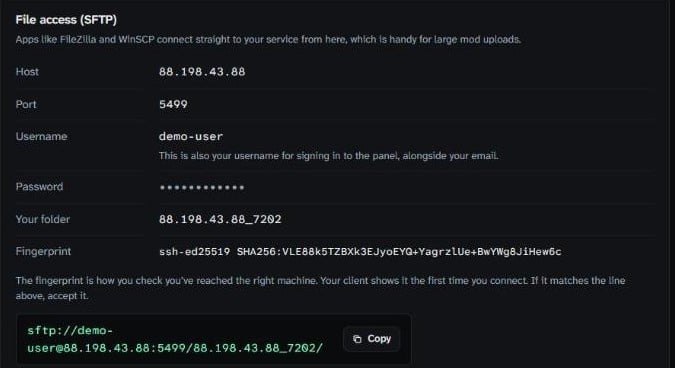
The connection details are on your service's Overview page, on the File access (SFTP) card.
- Protocol: SFTP (not FTP).
- Host: as shown on the card.
- Port: 5499.
- Username: for a bot, its
bot-name. For a person, their GG Nexus username (the card shows yours). - Password: for a bot, the one you copied when you made the login. For a person, their file-access password (below).
- Folder: the card's Your folder line is the service's folder, named after its address and port. Your client opens in it.
Under the details, the card has the whole address as one sftp:// link with a Copy button. Many clients take that link pasted straight in, and Connect opens it in your SFTP app if it is set up to take these links.
Your own file-access password
People connect with a file-access password, which is separate from the password you sign in to the panel with. The owner, Co-admins and File viewers each make their own: on the service's Overview, File access (SFTP) card, press Generate password. It is shown once, so have somewhere ready to paste it.
It is one password for every service you can reach over SFTP. If you lose it, press Reset password on the same card. Before it changes anything, the panel lists the other services the new password applies to.
The first time a client connects it shows the host's fingerprint and asks whether to trust it. Compare it with the fingerprint on the File access card; if they match, accept it.
Any current SFTP client works. We test with WinSCP and with the sftp command (OpenSSH) that comes with Windows, macOS and Linux. In WinSCP, set File protocol to SFTP and fill in the host, port, username and password from above.
Moving from TCAdmin: what to update
Sub-users and FTP logins from TCAdmin are not copied into GG Nexus, so set them up again on the Access page after your move:
- Invite each person who had a sub-user, with the role that matches what they did.
- Make a bot login for each bot or tool that used an FTP or SFTP login.
- In each bot's settings, change three things: the username (the new
bot-name), the password, and the port. The SFTP port is 5499 on GG Nexus (TCAdmin used 8822). Folder names are the same as on TCAdmin, so paths in the bot's settings can stay as they are.
FAQ
Can a bot sign in to the panel?
No. A bot login is SFTP only.
Can I limit a bot to one folder?
Yes. Pick the folder when you make the login.
I lost a bot's password.
Reset it on the Bot logins tab. The old password stops working, so put the new one in the bot's settings.
Can a Co-admin invite more people?
No. Only the owner can invite people or change their roles.
My invite link stopped working.
Links last 72 hours. The owner can send a fresh one: Change on your row, then Send the invitation again.
Does a person I invite get my password?
No. Everyone signs in with their own account.
Can I make a bot login on a Wardogs service?
No. Wardogs services have no SFTP, so the Bot logins tab is not there.
