


Running a Duckside server can be an exciting experience, giving you the freedom to customize gameplay and create the perfect environment for your community. With GG Host as your provider, you have access to powerful and user-friendly tools to manage your server’s settings.
This step-by-step guide will walk you through the GG Host server control panel so you can access and update your Duckside server settings with ease.
Step 1: Initial Server Setup
To set up your server, provide us with a few important details:
-
Server Name: Choose a unique and recognizable name. Use underscores instead of spaces and avoid special characters.
-
Admin’s Steam ID (For PC – Optional): This 17-digit number grants you admin privileges directly in-game.
-
Admin’s EOS ID (For Console – Optional): This unique alphanumeric string grants you admin access in the console version of Duckside.
Once these details are submitted, GG Host will prepare your server. You’ll then be able to customize everything via the TCAdmin control panel. You can adjust these settings anytime by stopping the server and editing the fields.
Step 2: Accessing the Server Control Panel
To modify your server settings, log in to the GG Host control panel powered by TCAdmin. This is your central hub for server management.
How to access it:
-
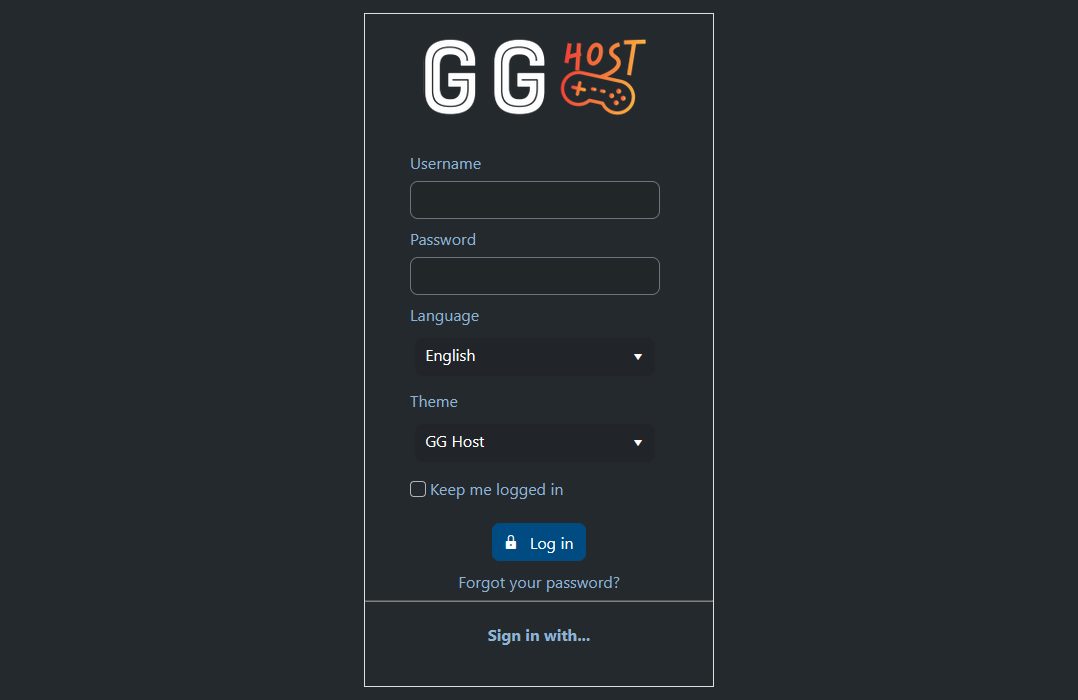
Log In: Use the credentials sent to you in an email with the subject: Your Control Panel Login. (Note: These are not the same as your GG Host website login.)
-
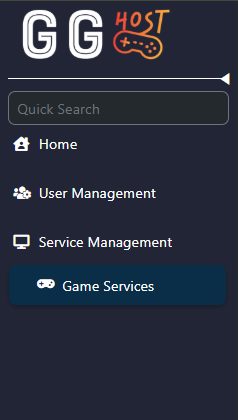
Navigate the Panel: On desktop/console, use the side menu. On mobile, click the GG Host logo. Go to Service Management > Game Services.
-
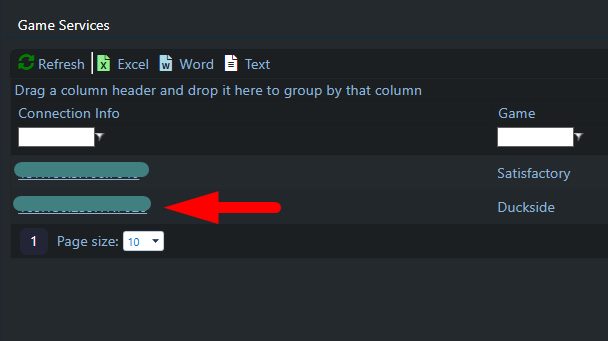
Select Your Server: Locate your Duckside server under “Game Services” and click the underlined IP address to access its details.
Step 3: Modifying PvP/PvE Settings and Server Name via Config Editor
Once inside the service page:
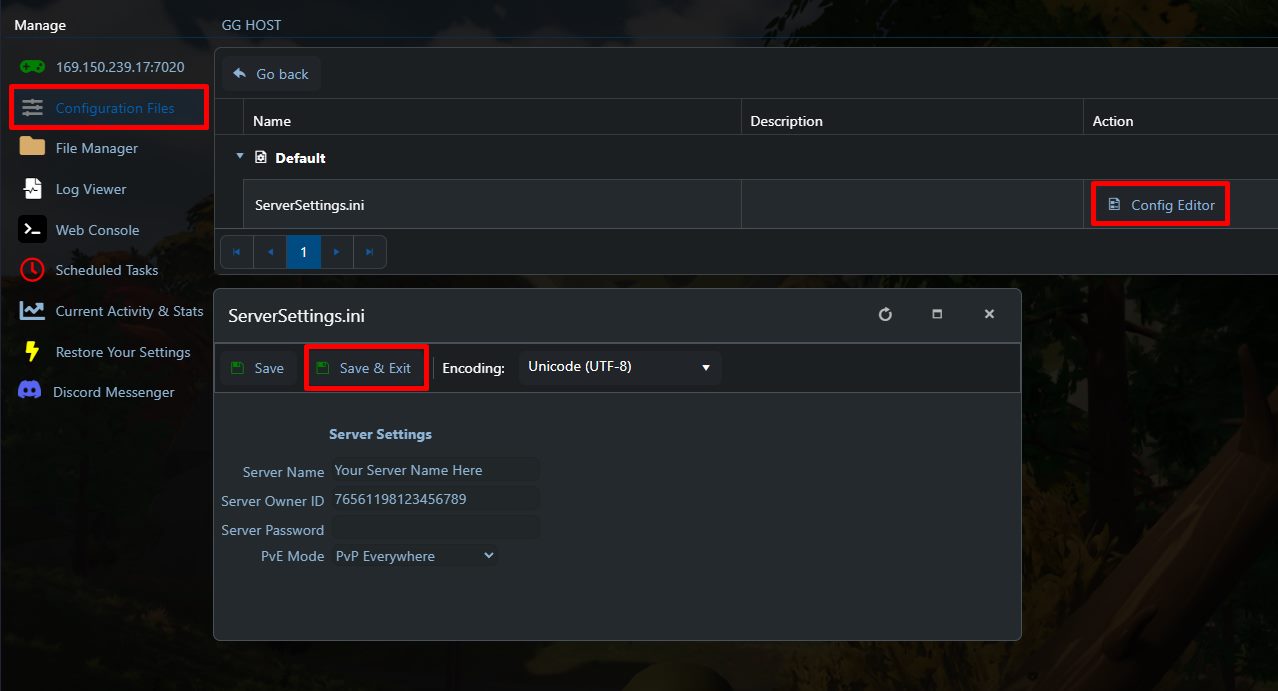
- Stop the server before making changes.
- Go to Configuration Files.
- Open Config Editor next to the
ServerSettings.inifile. - On this screen, you can change the server name, update the Steam ID (or EOS ID if it’s a Duckside Console), and adjust the server’s PvP/PvE settings.
- After you make the changes, just click Save and restart the server.
Key settings to configure
-
Server Name: Must use underscores instead of spaces and avoid special characters like quotes or apostrophes.
-
Admin EOS ID (Console): String of numbers/letters starting with
000. Double-check accuracy. -
Admin Steam ID (PC): 17-digit number starting with
765. Ensure there are no extra spaces when pasting. -
Server Password: This lets you restrict access so only players who know the password can log in.
-
PvE Mode: Choose whether PVP is allowed across the whole map or only in the central area.
After editing:
-
Save the Config: Double-check for typos or extra spaces.
- Restart the Server: Changes only take effect after a restart. Always stop first, edit, then restart.
Step 4: In-Game Admin Access
If your Steam ID/EOS ID is set correctly and you are the assigned admin:
-
Launch Duckside and join your server.
-
Use the admin access shortcut:
-
PC: Press F10
-
Xbox (XSX/XSS): Press LT, RT, X, and then A.
-
PlayStation 5: Press L2, R2, Square, and then Cross.
-
The required action is a sequential press of each button in order, without haste but without delay:
This opens the in-game admin panel, giving you access to advanced controls to fine-tune gameplay.
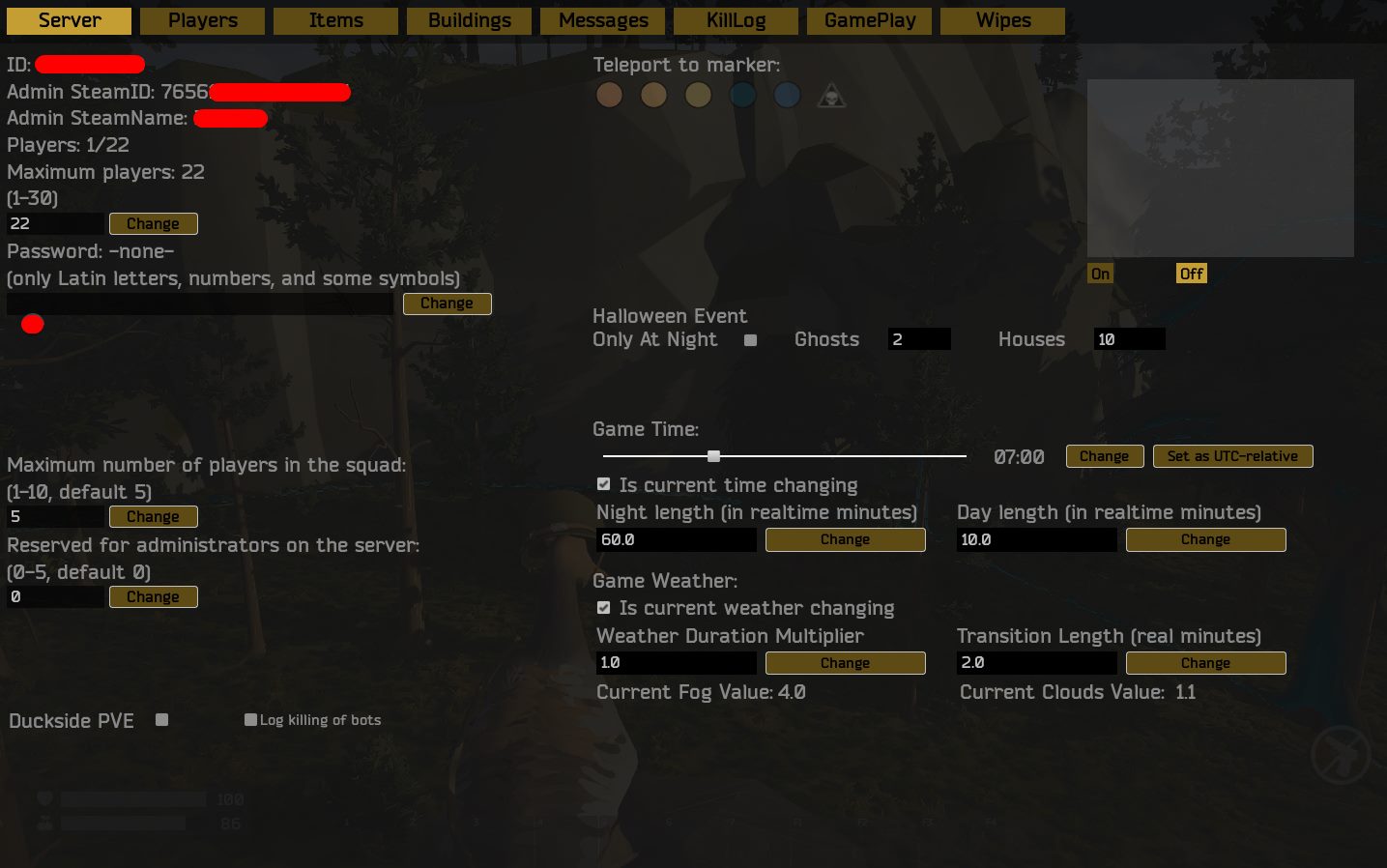
Conclusion
Managing your Duckside server through GG Host’s TCAdmin-powered control panel is simple and reliable. From setting your server name to adjusting the PvP/PvE settings or enabling admin access, you have all the tools needed for a smooth experience.
For any additional assistance, the GG Host support team is available 24/7 to help you get the most out of your server.
Stay tuned for updates, and visit our website regularly for the latest information. Enjoy your Duckside adventure with GG Host – where gaming meets quality and reliability!
Need a Duckside server?
GG Host offers high performance, low latency servers and reliable support so your flock can explore, fight, and survive with total stability. Order your Duckside server now: https://www.gghost.games/store/duckside