


If you want to change the map on your Deadside server, you can do everything directly from your Game Panel. There are three map options available in the panel: Default, Modded Map, and Procedural Map.
To access these three options and switch between them, you’ll need to open the Game Panel, stop your server, go to Configuration Files, and then open the ServerSettings.ini using the Config Editor.
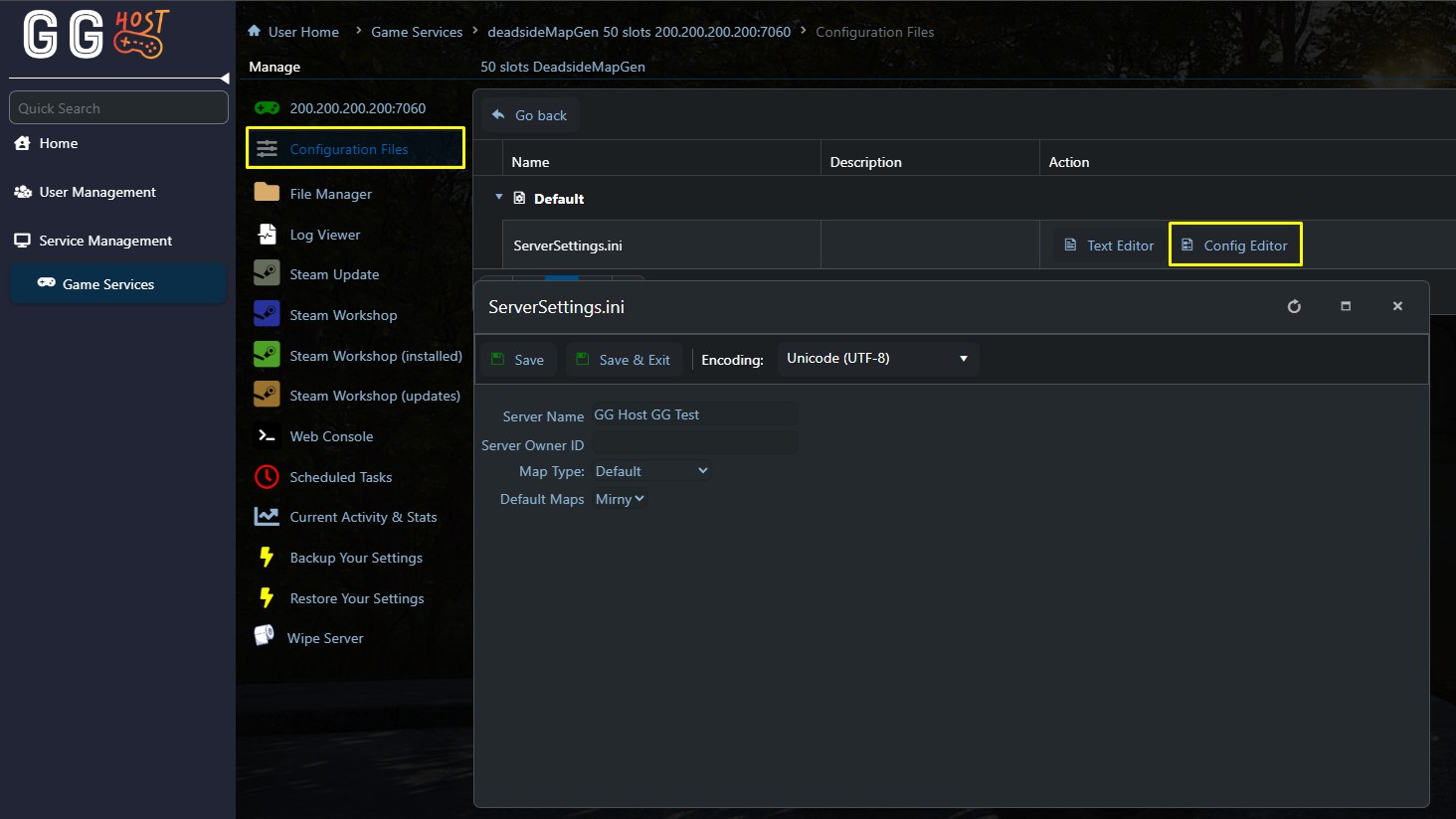
Below you will find what each option does and what you need to fill in for it to work correctly.
Default map option
This is the standard option that uses the official Deadside maps. When you select Default in the map type or world type field, you can usually choose between two default maps:
- Mirny, the standard full size Deadside map;
- Potny, a smaller map, usually preferred for more intense PVP focused servers.
Once you select Default as the Map Type, look for a field that lets you choose which default map you want to use, Mirny or Potny.
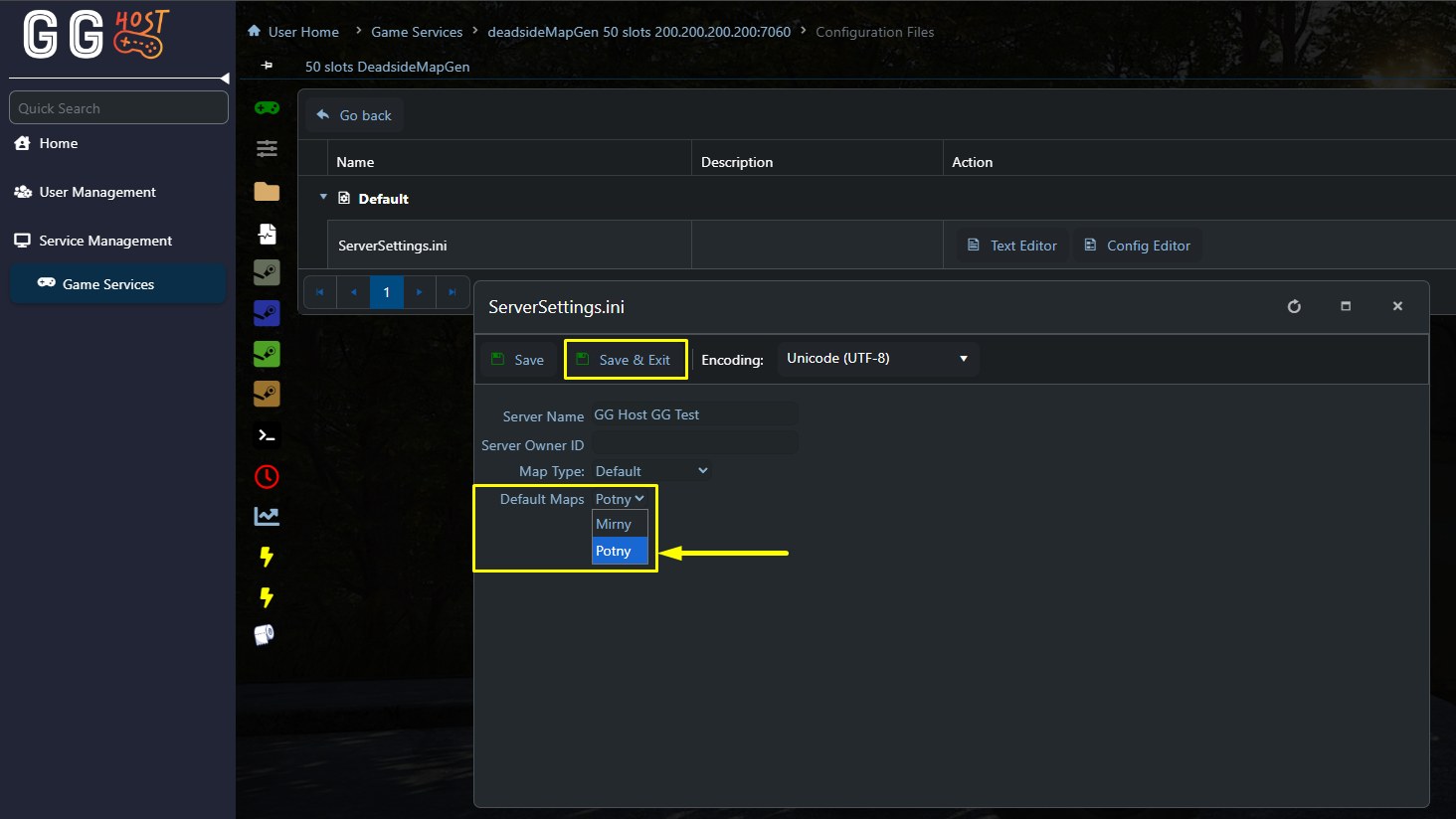
After you save and start your server again, it will load on the selected default map.
Modded Map option
Choose this option if you want to run a custom map that comes from a mod.
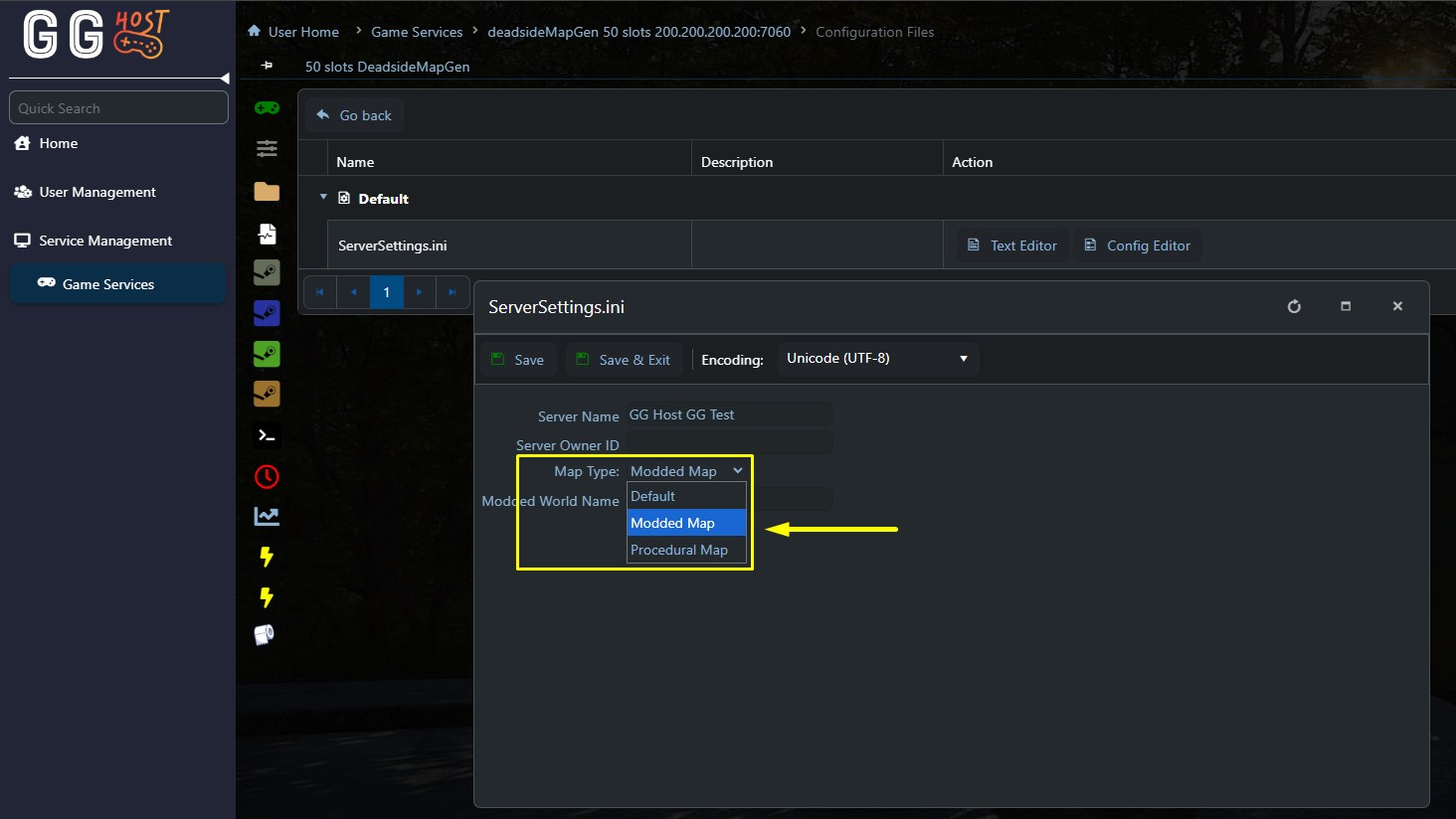
When you select Modded Map in the Game Panel, a field called Modded World Name will appear. This field is important, since it must exactly match the world or map name defined by the mod author.
Use the exact map name provided by the mod description or documentation.
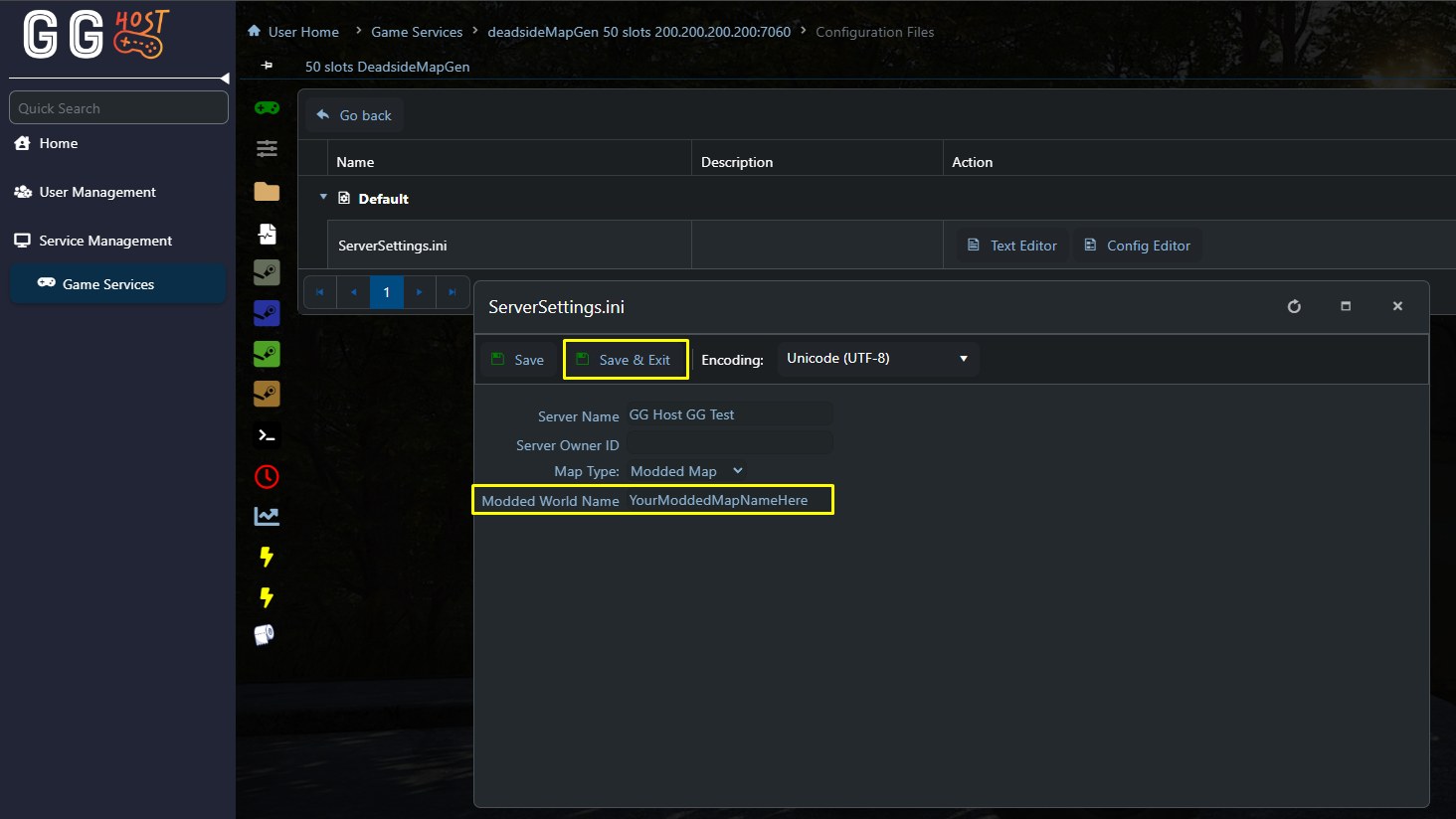
After filling this field, save the changes and start your server again so the modded map can load.
If the name is wrong, the server may fail to start or will fall back to a default world.
Procedural Map option
The Procedural Map option lets Deadside generate a world dynamically, based on a size and a seed value. This is ideal if you want a unique, replayable experience or want to experiment with different layouts.
When you select Procedural Map in the Game Panel, two extra fields will appear: Map Size and Map Seed.
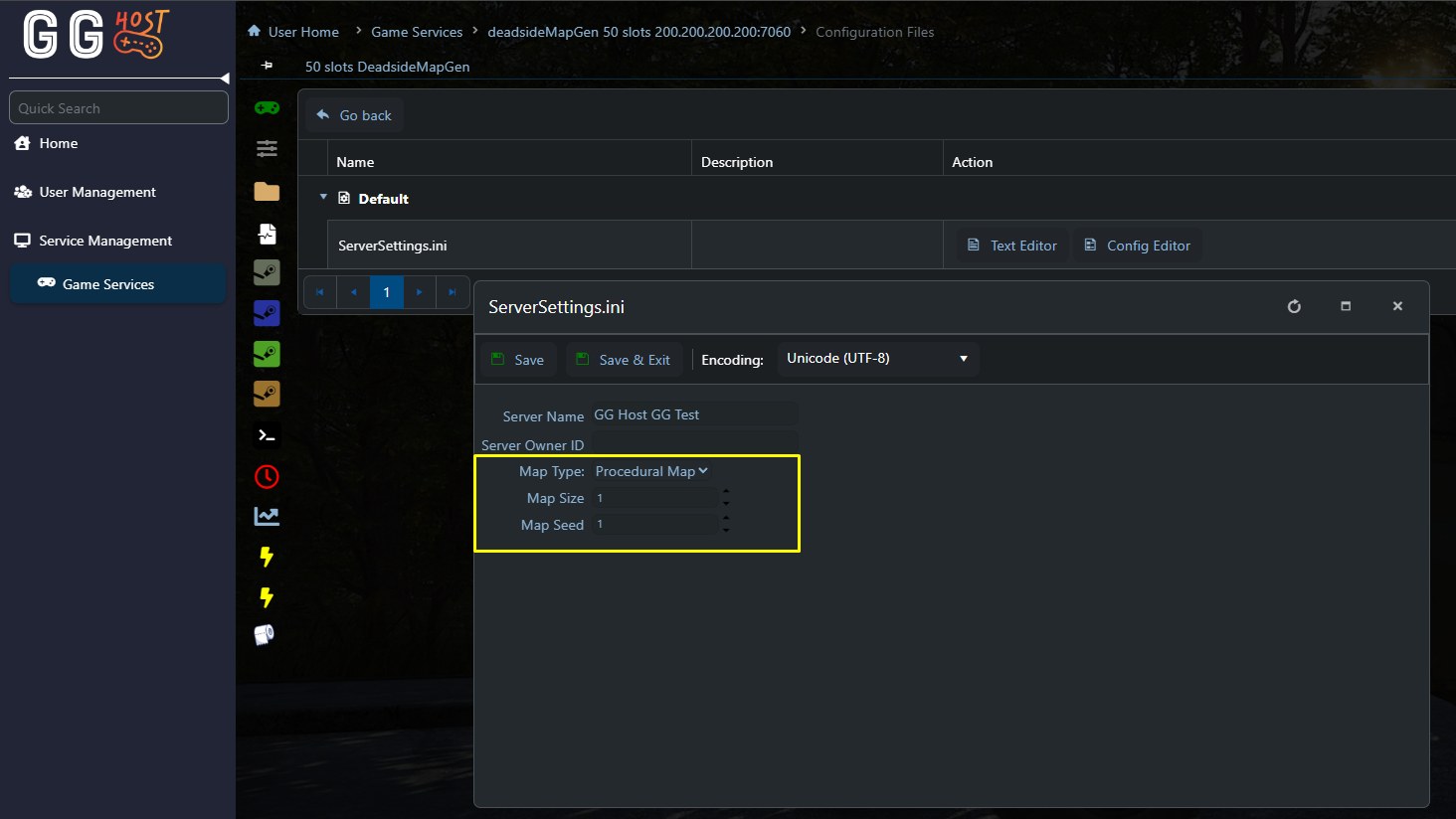
Map Size
Defines how large the procedural map will be. Can be set from 1 to 4:
- 1 is the smallest map (faster to explore, better for smaller or very PVP focused communities)
- 4 is the largest map (more exploration and distance, better for more players or survival focused servers)
Map Seed
Defines how the map is generated from a number. Can be any integer from 1 to 2147483647
The same seed with the same size will always generate the same map.
If you find a seed you like, you can reuse it later or share it with friends. If you want a completely new layout, change the seed number.
After setting Map Size and Map Seed, save the settings and start your server again so the procedural map can be generated and loaded.
How to change the Deadside map step by step
- Log in to your GG Host Game Panel;
- Open your Deadside service;
- Stop the server before applying map changes;
- Go to Configuration Files and open the Config Editor;
- Choose one of the three options:
Default, then select Mirny or Potny,
Modded Map, then fill in Modded World Name exactly as defined by the mod,
Procedural Map, then set Map Size from 1 to 4 and Map Seed from 1 to 2147483647. - Click to save the changes;
- Start your server again so the new map settings take effect.
Tips and common issues
- Always stop your server before making these changes.
- Map changes only apply after a full server restart, not just a quick save.
- Double check Modded World Name! If the modded map does not load, the most common cause is a typo or a wrong world name.
- Keep a backup before the changes (You can do this simply by restarting your server. It will create a restore point for you automatically).
Need a Deadside server
GG Host is the official Deadside hosting provider, offering high-performance, low-latency servers and reliable support for your community. Order your Deadside server now: https://www.gghost.games/store/deadside