


Windrose Dedicated Server - Managing Worlds
Overview
Your Windrose dedicated server supports multiple worlds. Each world has its own save data, difficulty settings, and unique World ID. Only one world can be active at a time.
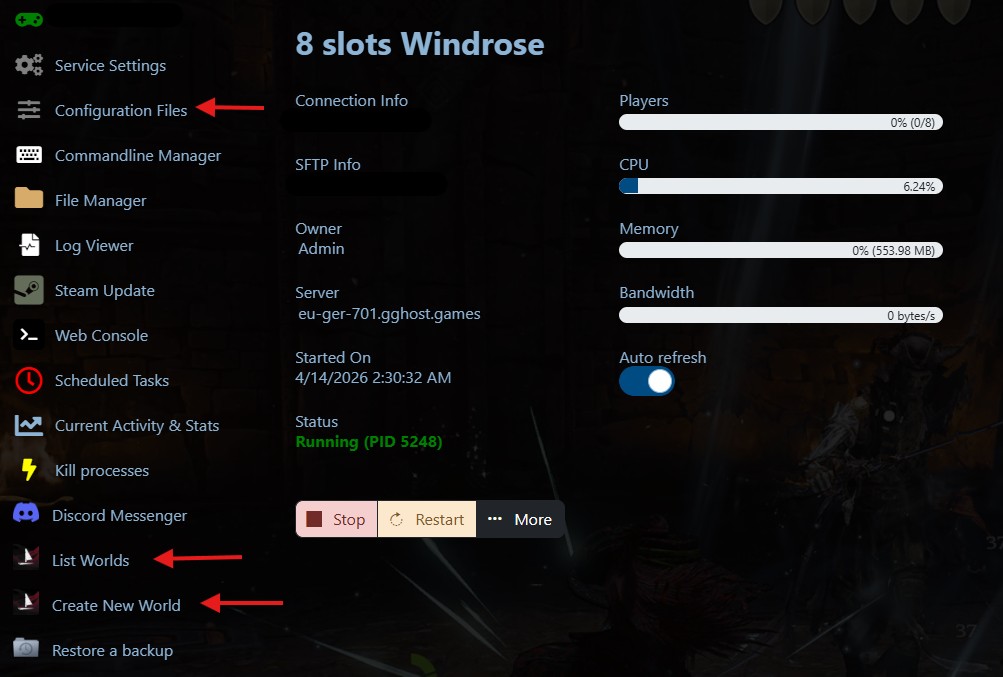
You can manage your worlds using the tools available on your service management page:
- List Worlds — View all worlds on your server with their names, presets, and IDs
- Create New World — Generate a new world with your chosen difficulty settings
- Configuration Files — Switch the active world or edit server settings
Listing Your Worlds
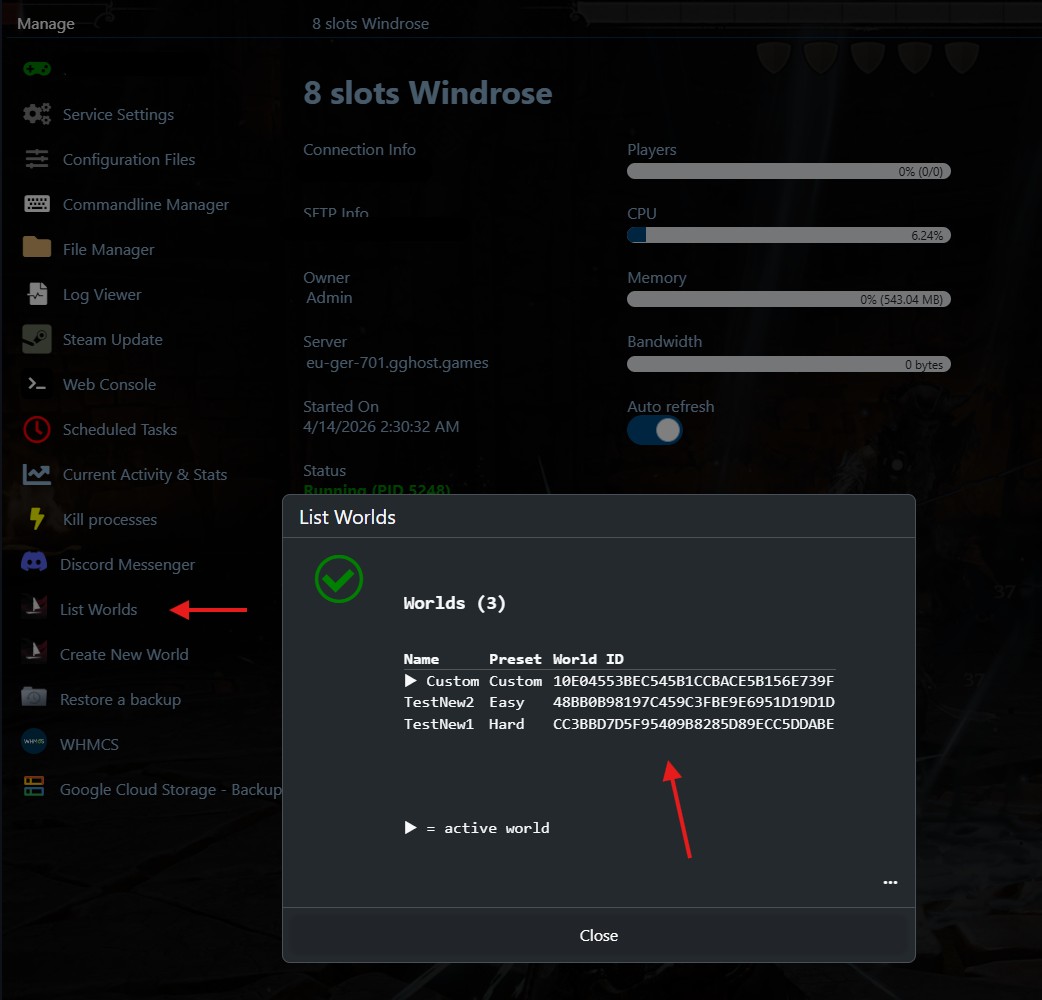
To see all worlds currently on your server:
- Navigate to your Windrose service management page.
- Click List Worlds in the left-hand menu.
- A summary will appear showing each world's Name, Preset, and World ID.
- The active world (the one loaded when the server starts) is marked with a ▶ arrow.
Tip: If a world shows as (unnamed), it was auto-generated by the server on first boot. You can give it a name by creating a new world with your preferred settings.
Creating a New World
To create a new world with your preferred difficulty settings:
- Navigate to your Windrose service management page.
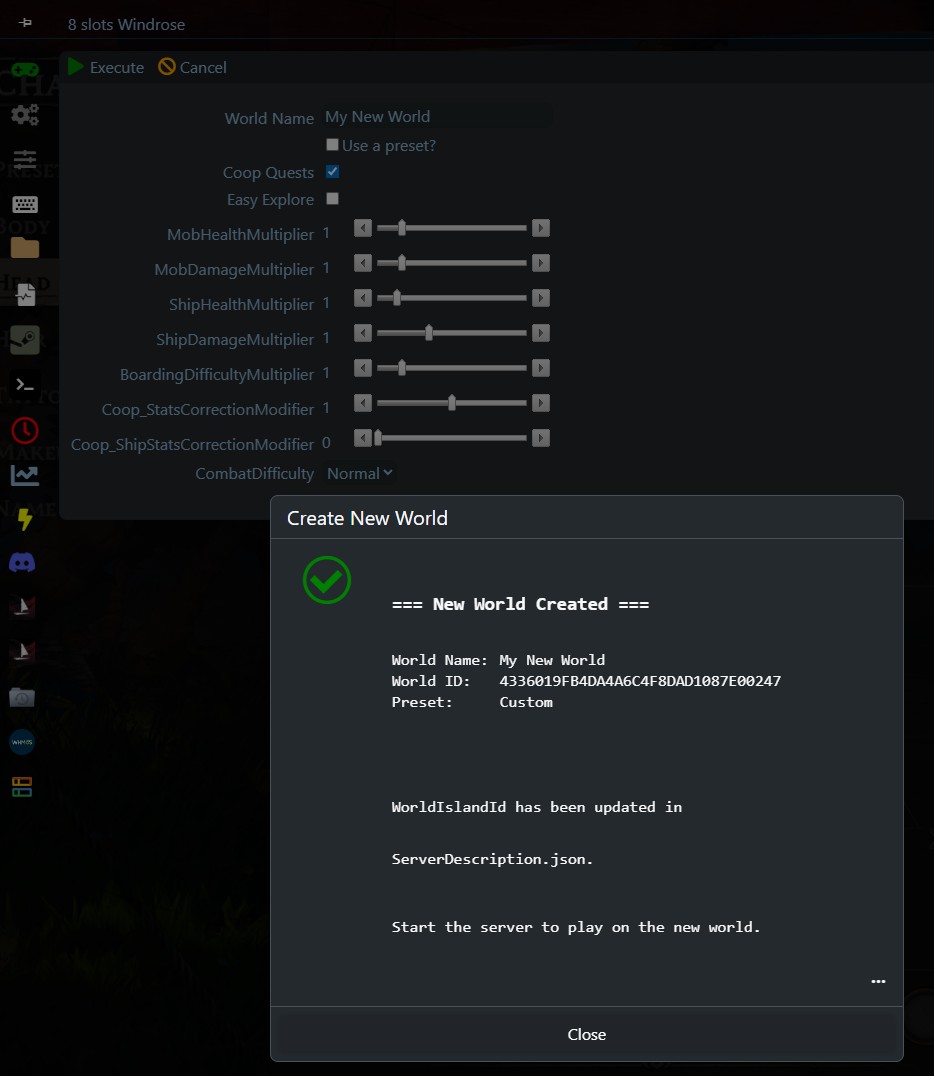
- Click Create New World.
- You will be prompted to enter the following:
- World Name — A friendly name for your world.
- Use Preset — Set to
trueto use a preset, orfalsefor custom settings.
- If using a preset, select one of:
- Easy — Reduced enemy health and damage for a more relaxed experience.
- Medium — The default balanced experience.
- Hard — Increased enemy health and damage for a challenge.
- If using custom settings, you will be prompted for each individual parameter (see World Settings Reference below).
- Click Execute. The script will:
- Temporarily start and stop the server to generate the world data.
- Apply your chosen settings.
- Automatically set the new world as the active world.
- Once complete, a summary will display the new world's Name, World ID, and Preset.
- Start your server — it will load the new world.
Important: The server will be briefly started and stopped during world creation. This is normal and takes approximately 30 seconds. Do not attempt to connect to the server during this process.
Switching the Active World
To switch which world your server loads on startup:
- First, use List Worlds to find the World ID of the world you want to switch to.
- Make sure your server is stopped.
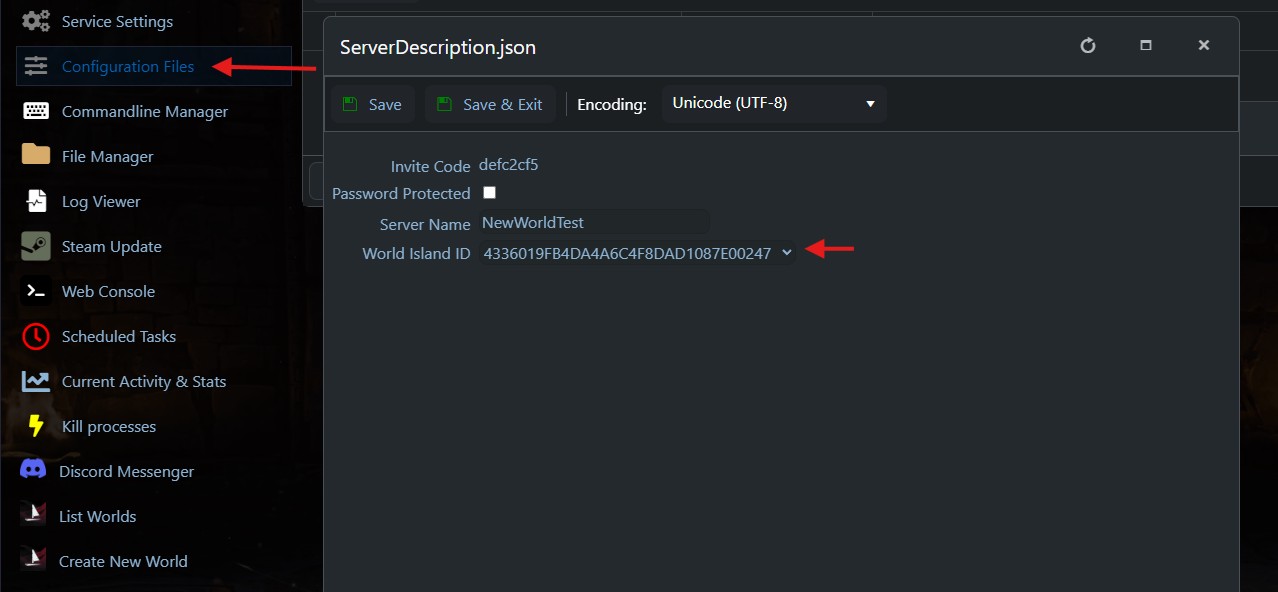
- Navigate to Configuration Files in the left-hand menu.
- Open ServerDescription.json using the Config Editor.
- Change the World Island ID dropdown to the ID of the world you want to use.
- Click Save.
- Start your server — it will now load the selected world.
Tip: You can also edit theServerDescription.jsonvia the Text Editor if you prefer. Look for the"WorldIslandId"field and paste the World ID there.
World Settings Reference
To modify an existing Windrose world's settings:
- Stop your server
- Open the file manager
- Navigate to: R5/Saved/SaveProfiles/Default/RocksDB/<game version>/Worlds/<world ID>/WorldDescription.json
When creating a world with custom settings, the following parameters are available:
Difficulty
| Parameter | Description | Default | Range |
|---|---|---|---|
| Combat Difficulty | Boss difficulty and enemy aggression | Normal | Easy / Normal / Hard |
| Mob Health Multiplier | Enemy health | 1.0 | 0.2 – 5.0 |
| Mob Damage Multiplier | Enemy damage | 1.0 | 0.2 – 5.0 |
| Ship Health Multiplier | Enemy ship health | 1.0 | 0.4 – 5.0 |
| Ship Damage Multiplier | Enemy ship damage | 1.0 | 0.2 – 2.5 |
| Boarding Difficulty | Number of enemies in boarding actions | 1.0 | 0.2 – 5.0 |
Co-op Settings
| Parameter | Description | Default | Range |
|---|---|---|---|
| Shared Quests | Co-op quest auto-completion for all active players | true | true / false |
| Co-op Stats Scaling | Enemy health/posture scaling based on player count | 1.0 | 0.0 – 2.0 |
| Co-op Ship Scaling | Enemy ship health scaling based on player count | 0.0 | 0.0 – 2.0 |
Exploration
| Parameter | Description | Default | Range |
|---|---|---|---|
| Immersive Exploration | Hides point-of-interest markers on the map, making exploration harder | false | true / false |
Preset Values
| Parameter | Easy | Medium | Hard |
|---|---|---|---|
| Combat Difficulty | Easy | Normal | Hard |
| Mob Health | 0.7 | 1.0 | 1.5 |
| Mob Damage | 0.6 | 1.0 | 1.25 |
| Ship Health | 0.7 | 1.0 | 1.5 |
| Ship Damage | 0.6 | 1.0 | 1.25 |
| Boarding Difficulty | 0.7 | 1.0 | 1.5 |
| Co-op Stats Scaling | 1.0 | 1.0 | 1.0 |
| Co-op Ship Scaling | 0.0 | 0.0 | 0.0 |
| Shared Quests | true | true | true |
| Immersive Exploration | false | false | false |
GG Host offers high-performance, low-latency Windrose server hosting with reliable support for your community. Order your Windrose server now: https://www.gghost.games/store/windrose