


Windrose Dedicated Server - Server Configuration
Overview
All core server settings are managed through the ServerDescription.json file. You can edit this file using the built-in Config Editor or Text Editor.
To access your server settings:
- Make sure your server is stopped.
- Navigate to Configuration Files in the left-hand menu.
- Open ServerDescription.json using the Config Editor for a user-friendly form, or the Text Editor to edit the raw JSON.
- Make your changes and click Save.
- Start your server for the changes to take effect.
Important: Always stop your server before making configuration changes. The server may overwrite your changes if it is running.
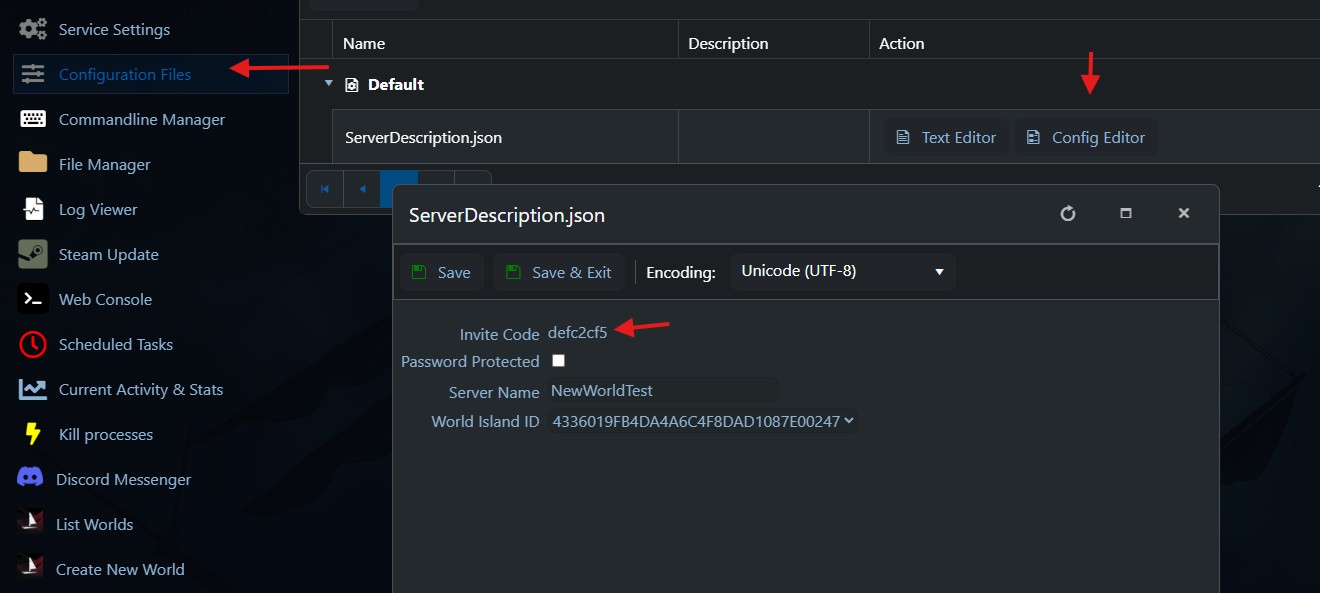
Invite Code
The invite code is what players use to find and connect to your server. A unique code is automatically generated when your server is first created.
- Field: Invite Code
- Case-sensitive: Yes —
AbCd1234andabcd1234are different codes.
Important: Do not edit the invite code. It is generated by the server and should not be changed manually.
Server Name
The server name is a descriptive label for your server. It can be helpful when multiple servers share similar invite codes.
- Field: Server Name
- Requirements: Free text, optional.
Password Protection
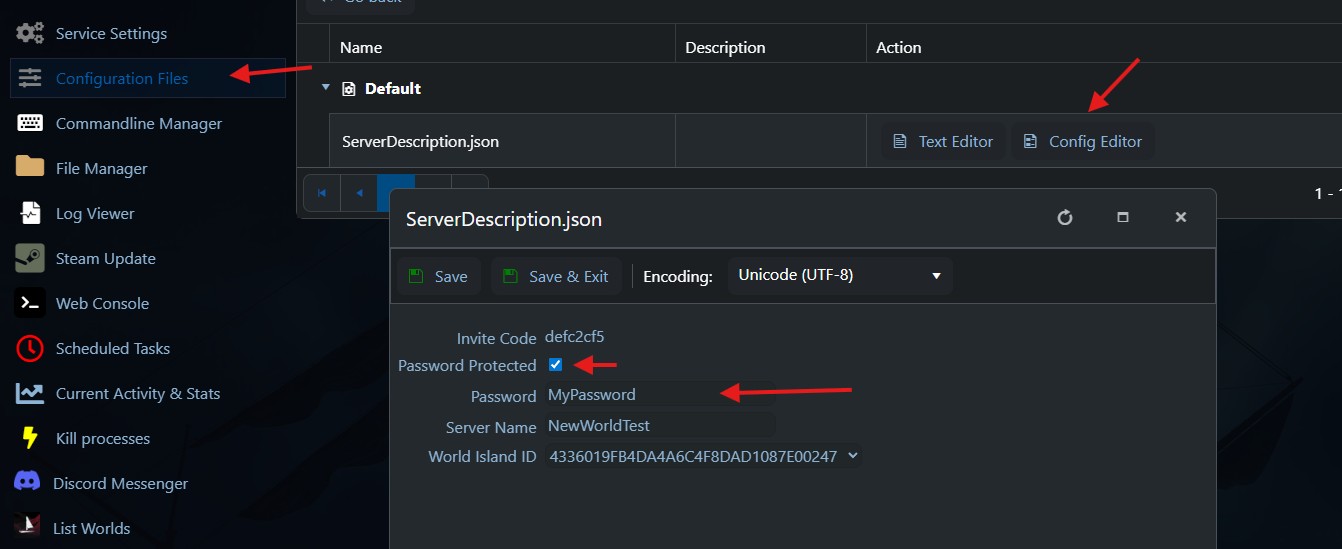
You can protect your server with a password to restrict who can join.
- Set Password Protected to checked (or
truein the Text Editor). - Enter your desired password in the Password field.
- Save and start your server.
Players will be prompted to enter the password when connecting via the invite code.
To remove password protection, uncheck Password Protected (or set to false).
Max Players
Controls the maximum number of players who can be connected to your server simultaneously.
- Field: Max Player Count
- Default: 8
- Maximum: 8
Note: Higher player counts require more server resources. See the hardware requirements below for guidance.
Recommended Resources by Player Count
| Players | RAM |
|---|---|
| 2 | 8 GB |
| 4 | 12 GB |
| 8 | 16 GB |
GG Host offers high-performance, low-latency Windrose server hosting with reliable support for your community. Order your Windrose server now: https://www.gghost.games/store/windrose